

Display Affiliate Products on WordPress (With or Without API)


You wrote a solid “best air fryers” post. You tested the models, compared the features, and added your affiliate links.
A month later, the clicks are barely there.
The problem usually isn’t your content. It’s how the products show up. A blue text link in the middle of a paragraph is easy to skip. Readers want to see the product, the price, and a button before they click.
That’s what a product display fixes. With AzonPress, you can display affiliate products on your website whether you have Amazon API access or not.
In this guide, I’ll show you both ways step by step: displaying affiliate products with the Amazon Creators API, and without it.
So, let’s get started.
TL;DR
What makes a product display work better than a text link?
Product display works better because it answers the reader’s questions before they leave your page.
Picture a reader on your “best air fryers” post. They’ve narrowed it down to two models. Now they want to know which one looks better, which one costs less, and whether it’s worth the click.
A text link gives them none of that. They have to open Amazon just to find out.
A product display puts the image, price, and buy button right in front of them. The reader compares, decides, and clicks while they’re still on your page. That’s the moment you earn the commission.
There’s a practical win for you as well. Products change all the time. Prices drop, listings go out of stock, newer models replace old ones. When your displays live in AzonPress, you fix a product once, and every post using it updates too.
API or no API: which method should you use?
It depends on your situation.
Suppose you’re already making regular Amazon sales; use the API. Amazon gives Creators API access only after 10 qualified sales in the previous 30 days. Once you have it, AzonPress pulls product titles, images, and prices straight from Amazon, so you never update them by hand.
If you’re just starting out, or you promote products from eBay, Etsy, or other programs, go without the API. You paste a product link, AzonPress builds the product box, and you’re ready to publish.
Here’s a quick way to decide:
- You have Creators API credentials: Use the API method for live Amazon data.
- You’re waiting for API access: Use custom products now, then switch later.
- You promote beyond Amazon: Use custom products for those stores.
Many affiliate sites end up using both. Amazon product tables for big roundups, custom products for everything else.
Now let’s discover both methods for how you can display affiliate products with or without API credentials.
Get access to our exclusive offers and pro tips!
How to display affiliate products with the Amazon API
With the API connected, AzonPress becomes a direct line to Amazon’s catalog. You search for products inside your WordPress dashboard, pick the ones you want, and AzonPress fills in the details for you.
Before you start, make sure you have:
- An approved Amazon Associates account
- Your Amazon tracking ID (it looks like yourstore-20)
- Your Creators API ID and Secret from Associates Central
- AzonPress installed and activated on your WordPress site
Step 1: Connect AzonPress with the Amazon Creators API
AzonPress now runs on the Amazon Creators API. You don’t need the old PA-API keys anymore.
- Go to Settings from the WordPress sidebar or the AzonPress navbar.
- Click Amazon API from the left sidebar.
- Select your marketplace from the Country field, like US or UK.
- Enter your Amazon Tracking ID.
- Paste your Creators API ID and Creators API Secret.
- Choose the API Version that matches your region. For example, 2.1 for North America or 3.2 for Europe.
- Click Update.
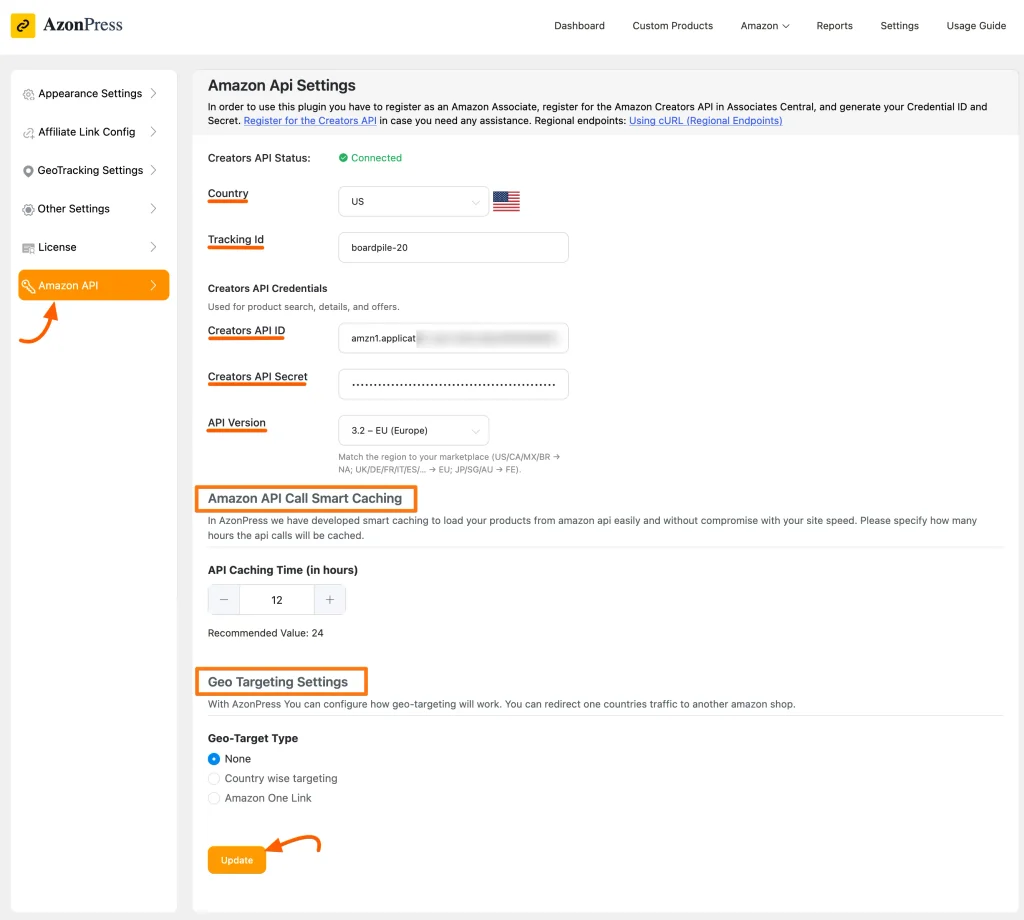
Once everything is correct, you’ll see a green connected badge next to Creators API Status.
If something goes wrong, like an expired credential or a wrong ASIN, AzonPress shows the error right on this screen under Last Amazon API Error. No digging through server logs.
While you’re here, set two more things:
API Caching Time: This controls how often AzonPress refreshes product data. I recommend keeping it at 24 hours. It keeps prices current without slowing down your site.
Geo-Target Type: If your readers come from different countries, choose country-wise targeting or Amazon One Link. Visitors get sent to their local Amazon store instead of a store they can’t buy from.
Don’t have your credentials yet? Follow this guide to creating Amazon API credentials.
Step 2: Create an Amazon product table
Now the fun part begins.
- Go to Amazon Products from the WordPress sidebar or AzonPress navbar.
- Click Create Product Table. If you’ve made tables before, click Add Product Table instead.
- Give your table a Title. For this blog, I’m naming it “Best Air Fryers for Small Kitchens.”
- Search for products using a keyword or ASIN.
- Select the products you want, or click Select All.
- Click Create Table.
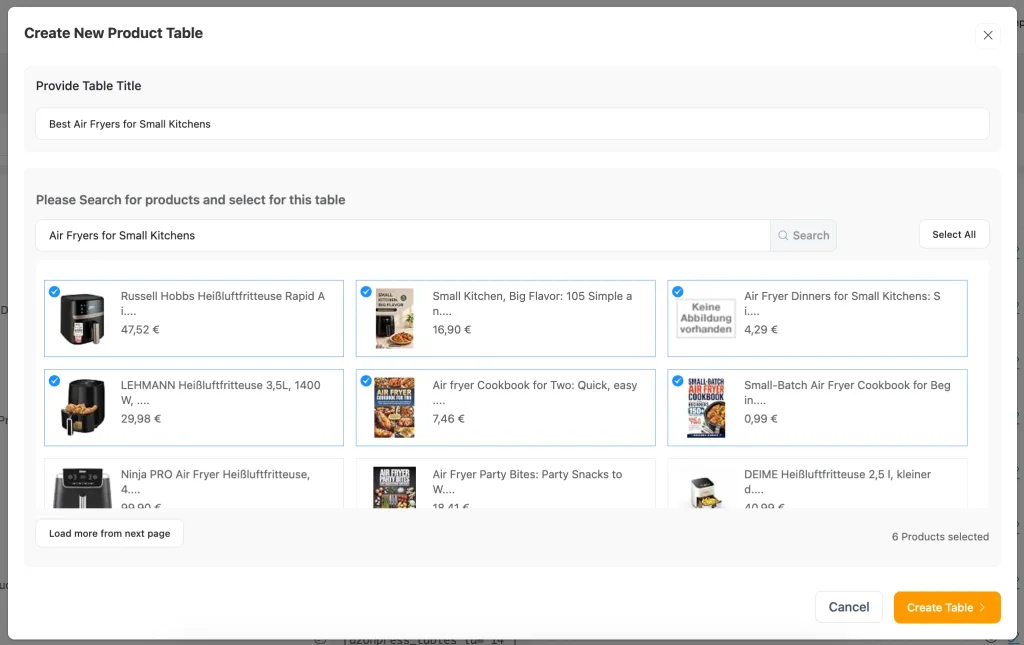
AzonPress creates a default product table with each product’s image, title, and price pulled from Amazon.
Step 3: Customize your product table
The default table works, but a few tweaks make it match your content.
Add columns: Click + Add Column to show details your readers care about, like rating or key features.
Change the design: Switch to Design Mode and pick a style from Styling library, Color Skin, Product Table Pagination, and Styling Feature.
Rearrange: Drag and drop columns and rows to put your top pick first.
Add more products: Click + Add Product anytime to bring in new items.
Use your own styling: Click Custom CSS if you want the table to match your theme exactly.
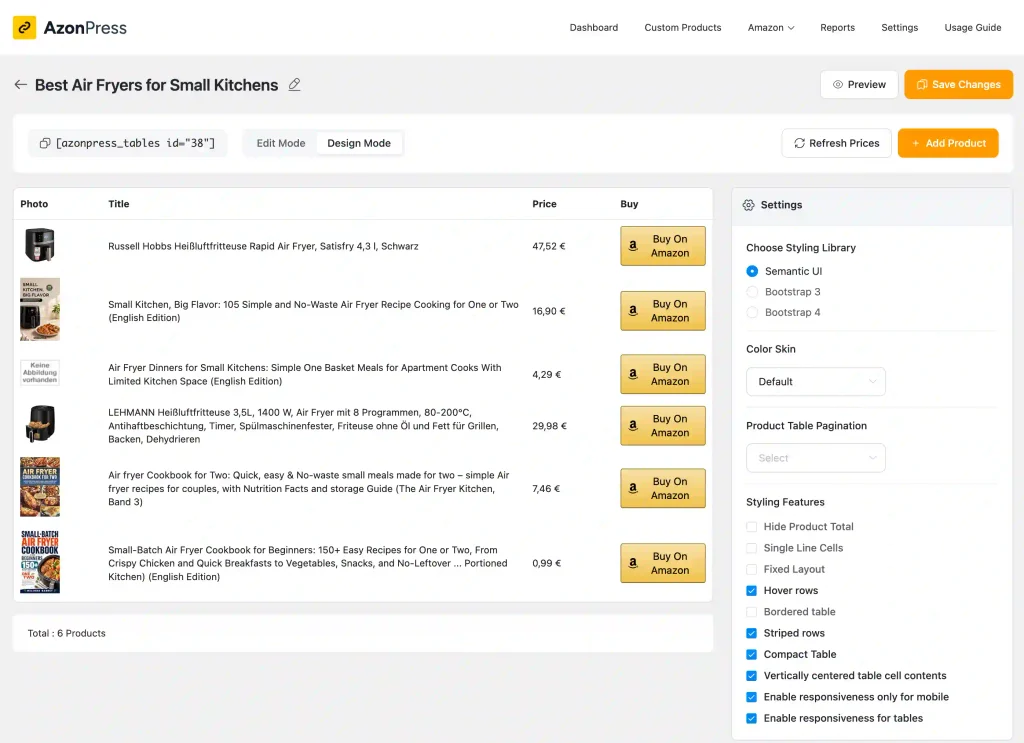
When you’re happy with it, click Save Changes. Use Preview to see how it looks on the front end.
Step 4: Add the table to your post
- Copy the Shortcode from the top left corner of the table editor.
- Open the post where you want the table.
- Add a Shortcode block and paste it in.
- Click Update or Publish.
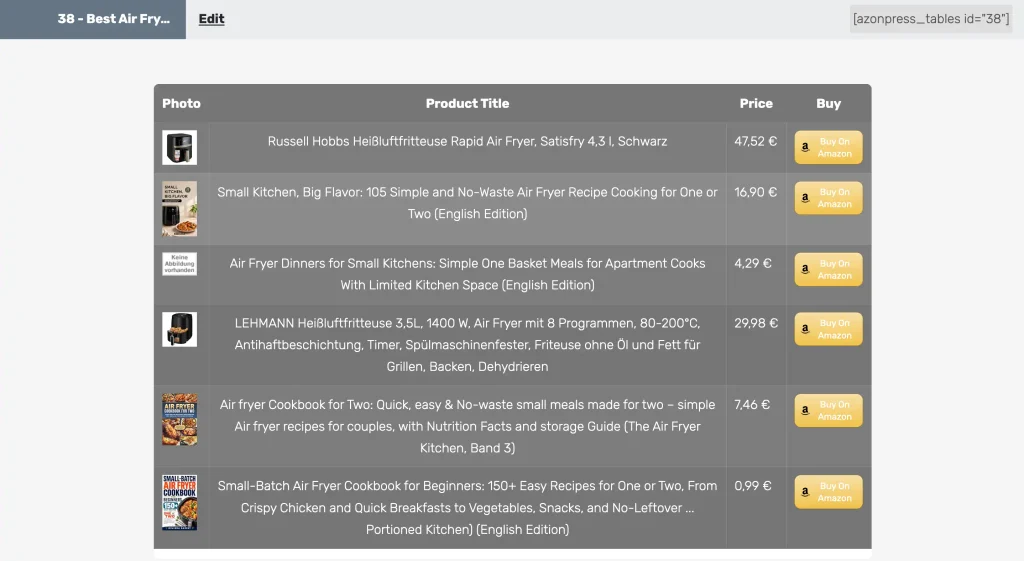
That’s it. Your table is live, and the prices stay current on their own.
Other ways to display products with the API
Product tables are just one option. Once your API is connected, you can also use:
- Comparison tables: Show specs side by side for “X vs Y” posts.
- Product templates: Pick from Grid, Box, List, Table, Widget, and Widget Small layouts.
- Bestseller lists: Show Amazon’s top sellers in any category.
- Gutenberg blocks: Add Single Product, Pros and Cons, Star Rating, or Call to Action blocks right inside the editor.
Manage links, create product tables, and comparison tables, and increase your affiliate revenue
How to display affiliate products without the Amazon API
If you don’t have API excess, you can still show proper product boxes.
AzonPress has a Custom Products feature that builds a product display from a simple product link. It works for Amazon, and for eBay and Etsy too. So new affiliates waiting for API access aren’t stuck with plain text links.
Here’s how to do it:
- Add your tracking ID: Go to Settings > Affiliate Link Configuration and add your Amazon tag, like tag=yourstore-20. Skip this, and your clicks won’t earn commissions.
- Add a custom product: Go to Custom Products and click Add Custom Product.
- Pick a template: Choose Single Product Template for one product or Multiple Product Template for a roundup.
- Paste the product link: Add the product URL in the URL field and click Continue. AzonPress fetches the details.
- Edit the details: Click the pencil icon, then Edit to change the product info, image, and button.
- Publish it: Copy the product’s Shortcode from the dashboard and paste it into a shortcode block in your post.
Each custom product also gets a Cloaked URL. Use it for buttons, text links, or social posts, and AzonPress tracks every click in your reports.
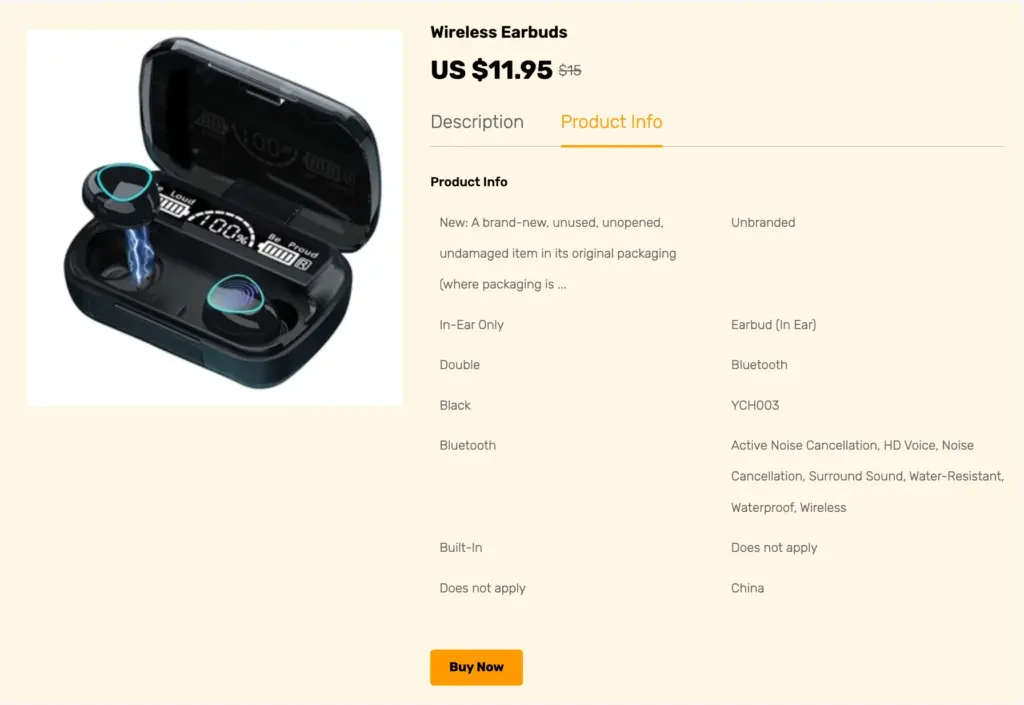
Just remember, without the API, prices don’t update on their own. Check them now and then, especially during big sales like Prime Day.
Need every step in detail? we’ve covered the full process, from tracking ID setup to roundup templates, check this guide on promoting Amazon products without an API.
Where should you place product displays in a post?
A great product box in the wrong spot still gets ignored. Placement matters as much as design.
Put a quick table near the top of roundups: Plenty of readers just want the answer. A short table right after your intro lets them pick and click. Readers who want the details keep scrolling.
Add a product box right after your verdict: In a review, the reader decides the moment you give your opinion. Don’t make them scroll three sections to find the button.
Don’t stack displays back to back: Three tables in a row makes your post feel like a catalog. Space them out with real advice in between.
Check how it looks on mobile: A table with eight columns gets cramped on a phone. Keep only what drives the decision: image, name, one key feature, and price.
Let your reports tell you what’s working. AzonPress tracks clicks, unique clicks, and countries in its reports dashboard. If a display gets views but no clicks, move it or change it.
Start showing products, not just links
If you already have Creators API access, connect it and build your first product table. Your prices and product details stay current without any manual work.
If you’re still working toward those 10 sales, start with custom products today. Every sale you make from a product box brings you closer to API access.
Either way, pick your best-performing post this week and add one product display. Then check your reports and see the difference.
I hope this guide helps you turn plain affiliate links into product displays your readers actually click. If you get stuck anywhere, drop a comment below. I’m always happy to help.
Thanks for reading!


Frequently asked questions
Here are some frequently asked questions regarding ” affiliate product display on WordPress”.
1. Should I use a product box or a product table?
Use a product box when your post focuses on one product, like a review. Use a product table when readers need to compare several products, like in a “best of” roundup.
2. Can I use both the API and custom products on the same site?
Yes. Many affiliates use API-powered tables for Amazon roundups and custom products for eBay, Etsy, or hands-on reviews with their own photos.
3. Do AzonPress product tables update prices automatically?
Yes, when your Amazon Creators API is connected. AzonPress refreshes product data based on your API caching time. Custom products added without the API don’t update on their own.
4. Can I display eBay and Etsy products with AzonPress?
Yes. AzonPress custom products can fetch product details from eBay and Etsy links. You can also add products manually from any other affiliate program you’ve joined.
5. Will product tables slow down my WordPress site?
Not if you set them up right. AzonPress uses smart caching, so it doesn’t call Amazon every time someone opens your page. Keep the API Caching Time at 24 hours, and your tables load from stored data instead of fresh API requests.



Read Similar Blogs
We build lasting partnerships to boost and manage revenue growth



Leave a Reply