

Affiliate Link Tracking: What It Is and How to Do It Right


You added an affiliate link to your blog post. It goes live. People visit the page, some of them click, and a few of those clicks turn into sales.
But you have no idea how many clicks you’re actually getting, or how many views that link gets before someone clicks. You just check your commission report at the end of the month and see a number. No idea how many clicks came from how many views, or where those visitors were coming from.
Without that data, running an affiliate campaign is guesswork. You can’t fix what isn’t working if you don’t know whether your links are performing in the first place.
That’s exactly what affiliate link tracking solves. It shows you how many clicks and unique clicks you’re getting, and where your visitors are coming from.
In this guide, we’ll cover what affiliate link tracking is and how to set it up on WordPress.
Let’s get started.
TL;DR
What is affiliate link tracking?
Affiliate link tracking means keeping a record of what happens after someone clicks your affiliate link: how many people clicked, how many of those were unique visitors, how many just viewed the product without clicking, and where they clicked from.
Without tracking, all you have is your total earnings at the end of the month. You don’t know which link earned it, which post it came from, or whether that number is good or bad. With tracking, you can see exactly which link is pulling its weight and which one isn’t doing much at all.
That’s the real value here. It turns a single number you check once a month into data you can actually act on.
Why track changes in how you work?
If you’ve put effort into figuring out where to promote your links, tracking is how you find out if any of it actually paid off.
Say one post is getting a steady trickle of clicks every week, while another one you were excited about is sitting flat. Without tracking, both posts look the same on paper: you wrote them, you shared them, you moved on. With tracking, the gap is obvious, and you can put your time into the post that’s actually working instead of the one you just hoped would.
It also catches problems early. A link that used to perform well and suddenly stops, a product getting views but no clicks, a spike in clicks that never shows up in your sales; these are all signals you can only catch if you’re checking your numbers regularly, not just once a month.
The numbers worth paying attention to
- Total clicks – every click on the link, including repeat clicks from the same visitor
- Unique clicks – how many different people clicked, a more honest measure of your real reach
- Total views – how many people saw the product without necessarily clicking
- Total countries – how many different countries your clicks are coming from
Total clicks and unique clicks are the two numbers people mix up most. If your total is way higher than your unique count, that’s not new traffic; that’s the same visitors clicking repeatedly. Good to know, but it shouldn’t be the number you judge your reach by.
What do you need before you start tracking on WordPress?
Getting started here is simpler than most people expect. But you do need an affiliate marketing plugin that supports affiliate link tracking. Here’s what you’ll need to get going.
- AzonPress installed and activated on your WordPress site: AzonPress is an affiliate marketing plugin for WordPress. Tracking is built into the plugin. There’s no separate tool, no extra setup per link; it starts recording clicks the moment a product, table, or block goes live.
- A MaxMind API key is only needed if you want country-level data: Total Clicks, Unique Clicks, Total Views, and the click chart all work without it. The MaxMind key is only required for the Geo Location report specifically.
That’s it. Unlike a lot of tracking setups, you’re not connecting third-party analytics or pasting tracking codes into every link.
How to track your affiliate link with AzonPress?
AzonPress automatically records every click on your affiliate links, so you can measure how your products are actually performing. You don’t need to enable anything separately; tracking is active the moment you publish a product, table, or block on your site.
Here’s what it covers and how to check it.
Step 1: Install and activate AzonPress
AzonPress is a premium affiliate marketing plugin, so the first step is to purchase the plugin.
After completing your purchase, log in to the WPManageNinja Dashboard with your account credentials, and under My Products, you’ll find AzonPress.
- Download the ZIP file.
- Go to your WordPress dashboard > Plugins > Add New > Upload Plugin.
- Choose the ZIP file, click Install Now, and activate the plugin once it’s installed.
Step 2: Know what’s being tracked automatically
Once AzonPress is active, it starts tracking clicks from four places on your site, no toggles to flip:
- Product Tables – Clicks on any product row, image, or Buy button
- Comparison Tables – Clicks on any compared product’s Buy button or linked column
- Custom Products – Clicks on single or multiple custom product links, including Cloaked URLs
- Gutenberg Blocks – Clicks on links from the Single Product block and other product-display blocks
A Cloaked URL is the short, branded link AzonPress generates for your Custom Products (something like /azp/product-name), so you can share a clean link instead of a long affiliate URL. These clicks are recorded server-side, at the moment AzonPress redirects the visitor, so the click still counts even if they never fully load a page on your site.
One more thing worth knowing: rapid repeat clicks from the same visitor within a couple of seconds are only counted once, so your numbers reflect real interest, not accidental double-clicks.
Step 3: Check your reports overview
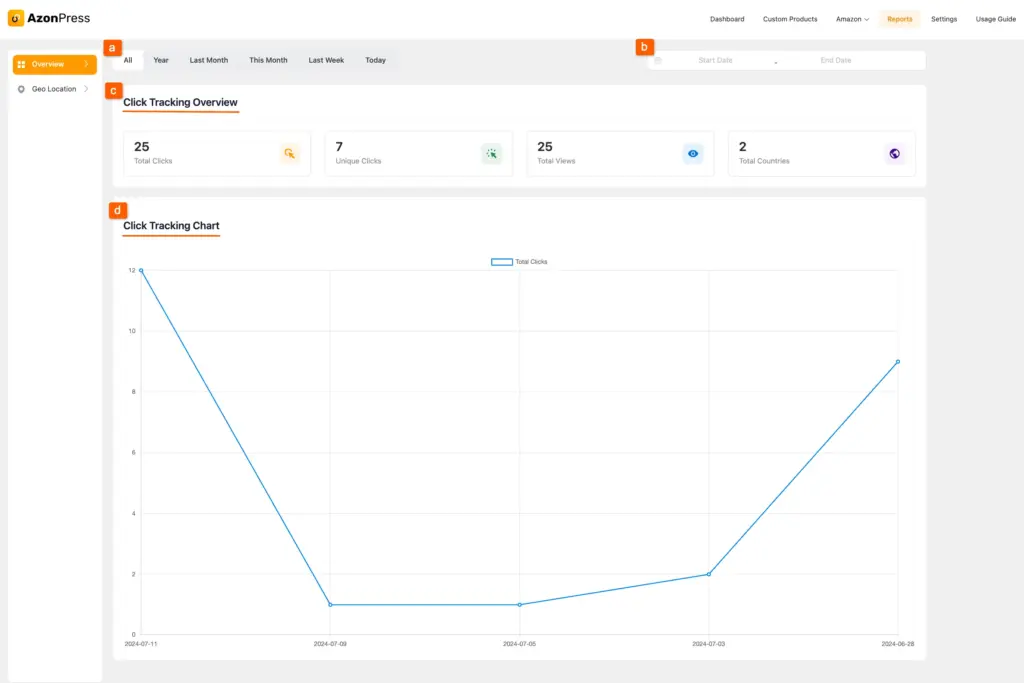
In your WordPress dashboard, go to AzonPress → Reports, and the Overview page opens automatically.
Here’s exactly what you’ll see:
- Total Clicks, Unique Clicks, Total Views, and Total Countries, shown as four separate numbers at the top
- A Click Tracking Chart below that, a line graph plotting total clicks over recent days, useful for spotting when a spike lines up with a new post or a mention somewhere else
- Filter tabs – All, Year, Last Month, This Month, Last Week, and Today
- A custom Start Date / End Date filter, if you want to check a specific range
Step 4: Check your Geo location report
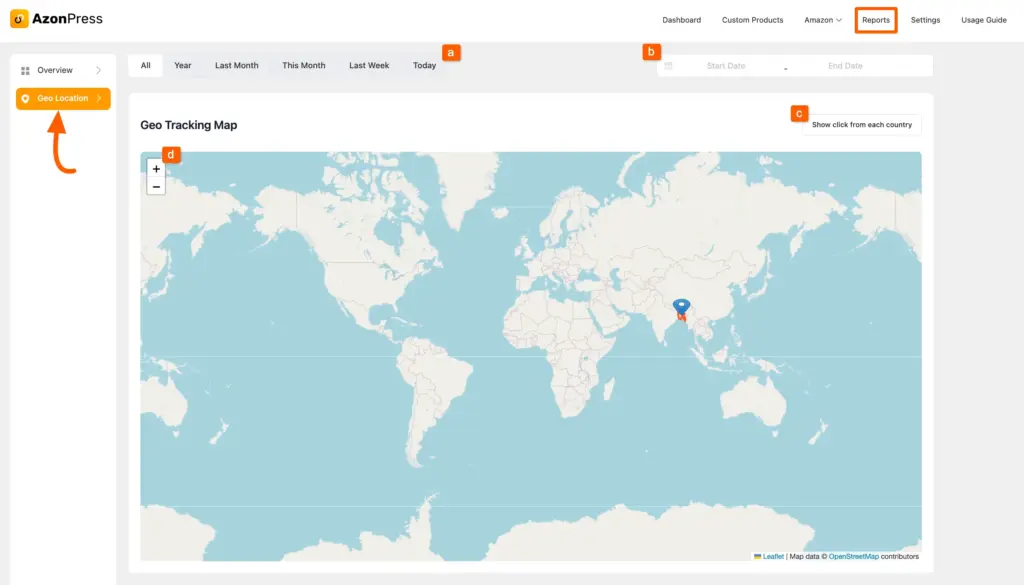
Click Geo Location in the left sidebar, right below Overview.
Before this shows any data, you need a MaxMind GeoIP API key configured. Without it, this page stays empty no matter how many clicks you’re getting. To get one, log in to your MaxMind account (or sign up for free), generate a license key, and paste it into AzonPress under Settings → Geo-Targeting.
Once that’s set, this report shows a Geo Tracking Map and a country-by-country click breakdown, with zoom controls on the map. If you’ve already set up geo-targeting with AzonPress, you’ll already have this key in place.
Common affiliate link tracking mistakes to avoid
Confusing total clicks with unique clicks: If your total is way higher than your unique count, that’s repeat clicks from the same people, not new reach. Judge your growth by unique clicks, not total.
Skipping the MaxMind setup: No key means no geo data, no matter how many clicks you’re getting. It takes a few minutes to configure, and it’s easy to forget until you actually go looking for country data and find nothing there.
Checking your numbers once a month: By the time you notice a link has gone cold, you’ve already lost weeks you could’ve spent fixing it. A quick weekly check catches problems while they’re still small.
Tracking clicks but never checking conversions: Clicks feel good to watch climb, but they don’t pay you. Always connect the click data back to what actually sold.
Assuming every click type is tracked the same way: Product Table and Comparison Table clicks, Custom Product clicks, Gutenberg block clicks, and Cloaked URL redirects are all counted, but Cloaked URLs specifically are recorded at the redirect step, not by a page loading. Worth knowing if your numbers ever look off.
Start actually knowing what’s working
Affiliate link tracking turns your monthly commission number into something you can act on. You stop guessing which posts are pulling their weight and start seeing it directly.
If you’re already using AzonPress for your Product Tables or Comparison Tables, this tracking is already running in the background; just head to Reports to see it. If you’re not using AzonPress yet, the Advanced Report Dashboard is included in every plan, starting at $3.25/month for a single site.
Give it a try, and see why so many affiliates stick with AzonPress.





Read Similar Blogs
We build lasting partnerships to boost and manage revenue growth



Leave a Reply