


Amazon Product Price API: Show Real-Time Amazon Prices to Your Visitors


You published a solid “best budget laptops” post. You picked the models, wrote honest notes, and added a price next to each one.
Three months later, a reader lands on it. The price you listed says $499. They click through to Amazon and see $629.
That gap costs you the sale. Worse, it chips away at the trust you spent months building.
That’s the thing on Amazon: prices move constantly. Deals come and go, stock runs out, newer models push old ones down. No affiliate can keep up by hand.
That’s exactly what the Amazon Product Price API solves. Connect it, and your product prices refresh on their own, so what your readers see is what Amazon is charging right now.
In this guide, I’ll walk you through what the Amazon Product Price API is, who can use it, and how to set up a product table with AzonPress that keeps its prices current without you touching it.
Let’s get into it.
TL;DR
What is the Amazon product price API?
When people say “Amazon product price API,” they usually mean Amazon’s Product Advertising API. Amazon has since rebranded it as the Creators API, but the job is the same.
It’s the official pipeline between Amazon’s catalog and your website. Instead of copying a price off a product page and pasting it into your post, the API pulls the real data straight from Amazon: the title, the image, and the current price.
That one detail changes everything for an affiliate. Your prices stop being a snapshot from the day you wrote the post. They become live.
Why do live prices matter more than you think?
There are two reasons, and both hit your bottom line.
The first is trust. A reader who sees $499 on your page and $629 on Amazon doesn’t think “prices change.” They think your post is out of date, and they stop trusting your recommendations.
The second is your account. Amazon’s Associates policy is strict about price accuracy. Showing an old price pulled by hand can get you a warning, or worse. The safest way to stay compliant is to let Amazon’s own API supply the numbers, because then they’re always Amazon’s numbers.
So live prices aren’t a nice extra. They protect your conversions and your account at the same time.
Who can access the Amazon Product Price API?
This is the part beginners need to know before they get excited.
Amazon doesn’t hand API access to everyone on day one. You unlock the Creators API only after you’ve made 10 qualified sales within 30 days as an Amazon Associate.
If you’ve already hit that, you’re ready to connect, and this guide is for you.
If you’re not there yet, don’t worry. You can still build proper product boxes with AzonPress using custom products, keep earning those first sales, and switch to the API the moment you qualify. I’ll point you to that route near the end.
Things you need before start Amazon affiliate marketing
Before you build your first auto-updating table, make sure you have:
- An approved Amazon Associates account
- Your Amazon tracking ID (it looks like yourstore-20)
- Your Creators API ID and Secret from Associates Central
- AzonPress installed and activated on your WordPress site
Got all four? Then let’s connect everything.
Tutorial: Setting up auto-updating prices with AzonPress
Setting this up is simpler than it sounds, and you won’t touch a single line of code. You’ll connect the API once, build your table, and the prices take care of themselves after that.
Step 1: Connect AzonPress with the Amazon Creators API
This is where your site gets its live link to Amazon.
- Go to Settings from the WordPress sidebar or the AzonPress navbar.
- Click Amazon API in the left sidebar.
- Select your marketplace in the Country field, like US or UK.
- Enter your Amazon Tracking ID.
- Paste your Creators API ID and Creators API Secret.
- Choose the API Version that matches your region. For example, 2.1 for North America or 3.2 for Europe.
- Click Update.
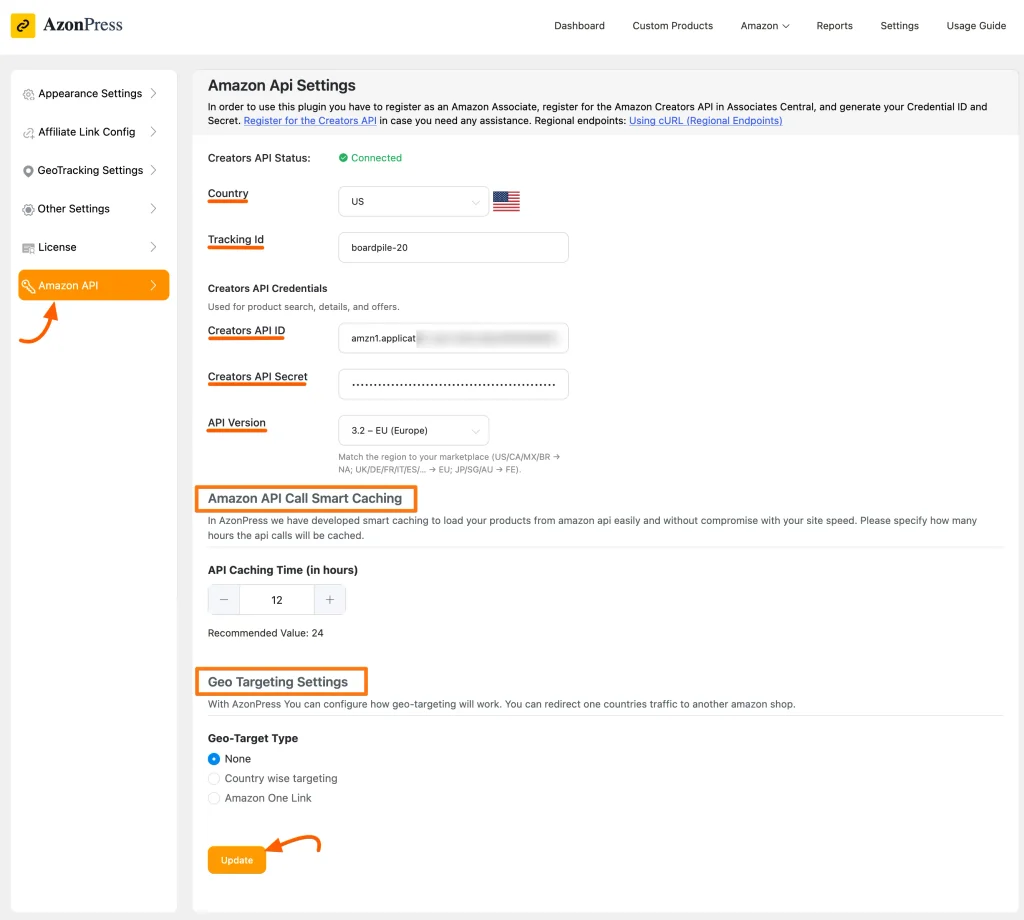
When everything’s correct, you’ll see a green connected badge next to Creators API Status. If a credential is wrong, AzonPress shows the error right on this screen under Last Amazon API Error, so you’re not digging through logs.
Before you leave this screen, set the one option this whole guide is built around:
API Caching Time: This controls how often AzonPress refreshes product data from Amazon. I recommend 24 hours. It keeps your prices current while keeping your site fast.
Don’t have your credentials yet? Follow this guide to creating Amazon API credentials.
Step 2: Create your Amazon product table
Now the fun part.
- Go to Amazon Products from the WordPress sidebar or the AzonPress navbar.
- Click Create Product Table. If you’ve built tables before, click Add Product Table instead.
- Give your table a Title. For this post, I’m calling mine “Best Air Fryers for Smaill Kitchens.”
- Search for products using a keyword or ASIN.
- Select the products you want, or click Select All.
- Click Create Table.
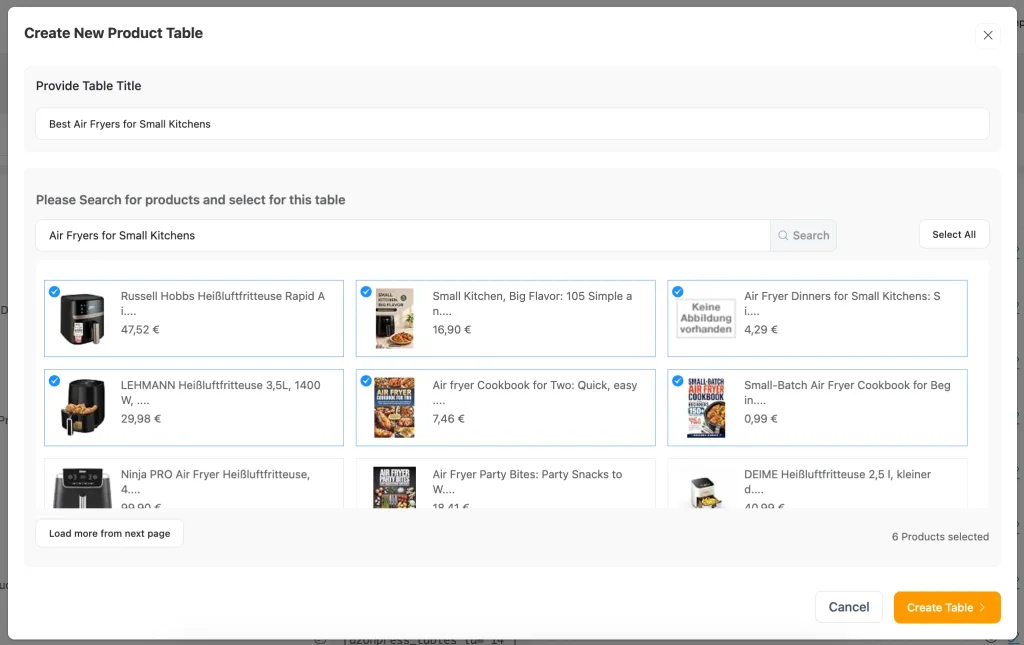
AzonPress builds a default table with each product’s image, title, and price pulled straight from Amazon through the API.
Step 3: Customize your table
The default table works, but a few tweaks make it fit your content.
- Add columns: Click + Add Column to show details your readers care about, like rating or key features.
- Change the design: Switch to Design Mode and pick from the Styling Library, Color Skin, Pagination, and Styling Feature options.
- Rearrange: Drag and drop rows to put your top pick first.
- Add more products: Click + Add Product anytime.
- Match your theme: Use Custom CSS for exact styling.
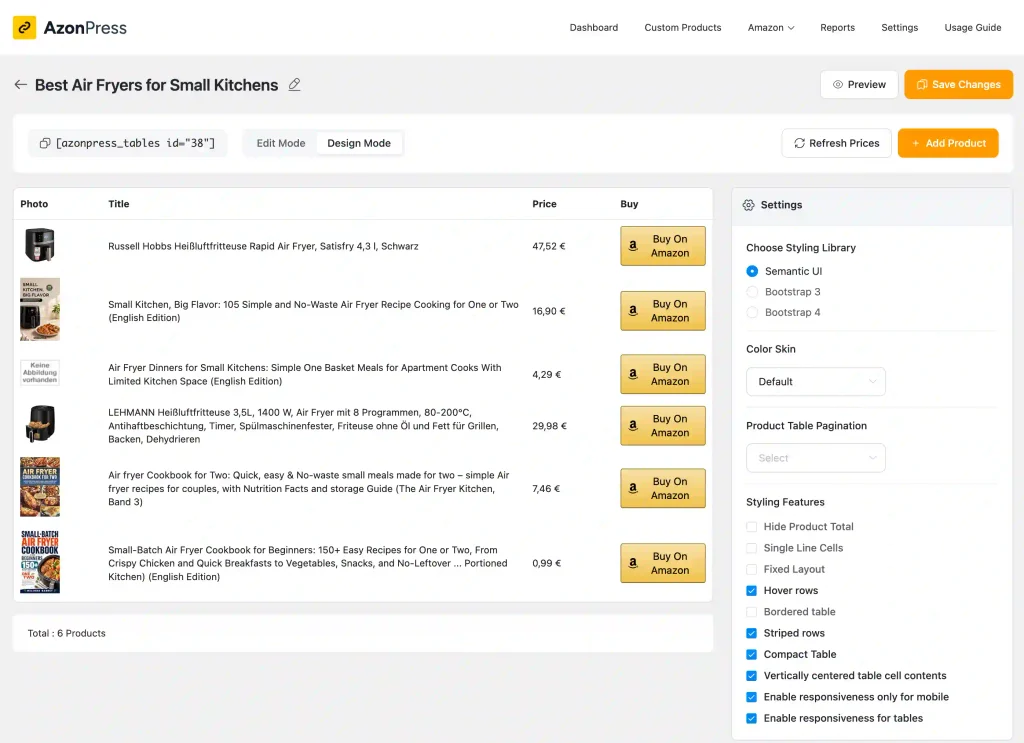
When it looks right, click Save Changes. Hit Preview to see how it lands on the front end.
Step 4: Add the table to your post
- Copy the Shortcode from the top-left corner of the table editor.
- Open the post where you want the table.
- Add a Shortcode block and paste it in.
- Click Update or Publish.
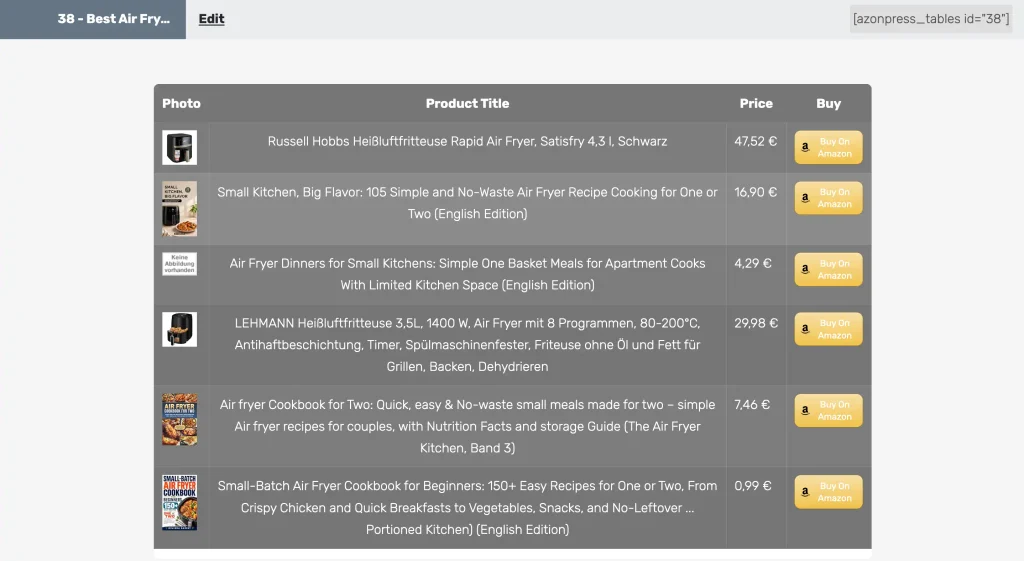
That’s it. Your table is live, and here’s the part that matters most.
Manage links, create product tables, and comparison tables, and increase your affiliate revenue
Your prices now update on their own
This is the payoff for connecting the API.
Once your table is live, you never open it to fix a price again. AzonPress checks Amazon on a schedule set by your API Caching Time, and pulls the latest title, image, and price each time it refreshes.
So when Amazon drops that laptop from $499 to $449, or bumps it back up, your table reflects the new price on the next refresh. Automatically.
Why 24 hours? Because it’s the sweet spot. Refresh too often, and you’re hammering the API and slowing your pages. Refresh too rarely and prices drift. A 24-hour cache keeps your numbers accurate while your pages load from stored data instead of calling Amazon on every visit.
The result: a “best of” post you wrote once that stays accurate on its own, month after month.
Not ready for the API yet? You can still build product boxes from a simple link using custom products. Here’s the full walkthrough on promoting Amazon products without an API. Just remember, those prices don’t refresh on their own, so check them around big sales like Prime Day.
Start showing prices your readers can trust
If you already have Creators API access, connect it and build your first product table today. Your prices and product details will stay current without any manual work from you.
If you’re still working toward those 10 sales, start with custom products now. Every sale from a product box brings you closer to API access, and you can switch over the day you qualify.
Either way, pick your highest-traffic post this week and give it a real product table. Then let the Amazon Product Price API handle the prices while you go write the next one.
If you get stuck anywhere, drop a comment below. I’m always happy to help.
Thanks for reading!


Frequently asked questions
Here are some frequently asked questions regarding “Amazon product price API”.
1. Do AzonPress product tables really update prices automatically?
Yes, when your Amazon Creators API is connected. AzonPress refreshes product data on the schedule set by your API Caching Time, so prices update without you editing anything.
2. How often do the prices refresh?
It’s up to you, through the API Caching Time setting. I recommend 24 hours. It keeps prices accurate while keeping your pages fast.
3. What if I don’t have Amazon API access yet?
You can still build product boxes using AzonPress custom products from a simple product link. Those prices don’t auto-update, so check them manually, especially during sale events. Switch to the API once you’ve made your 10 qualified sales.
4. Will the Amazon Product Price API slow down my site?
No, not with caching on. AzonPress loads tables from stored data instead of calling Amazon on every page view. A 24-hour cache keeps things fast.
5. Is pulling prices through the API required by Amazon?
Using the API is the safest way to keep prices accurate and stay within Amazon’s Associates policy, which takes price accuracy seriously. Letting the API supply the numbers means they’re always Amazon’s current prices.



Read Similar Blogs
We build lasting partnerships to boost and manage revenue growth





Leave a Reply