

What is Amazon Affiliate Tracking ID? How to Create Them


Imagine you’re running three different websites, a YouTube channel, and a newsletter, all promoting Amazon products. Sales are coming in, commissions are hitting your account, but you have absolutely no idea which platform is actually making you money.
Frustrating, right?
That’s exactly the problem an Amazon affiliate tracking ID solves, and once you understand how to use it, your whole affiliate strategy gets a lot sharper.
What is an Amazon affiliate tracking ID?
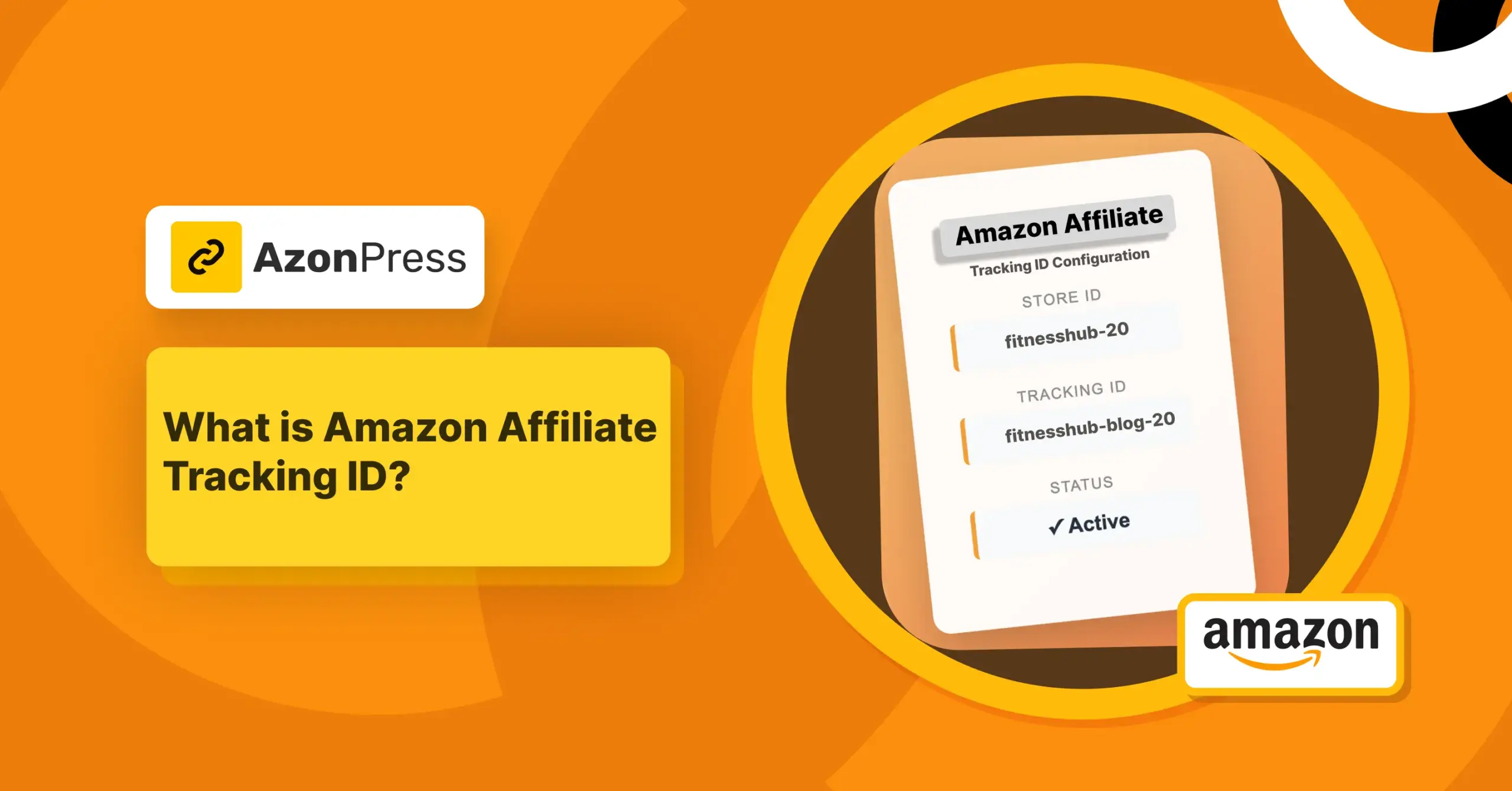
An Amazon affiliate tracking ID is a unique tag that lets you track the performance of different websites, platforms, or marketing strategies, all while funneling your earnings into one single Associates account.
Say your Associates Store ID is fitnesshub-20. You can then create separate tracking IDs under that same account, like fitnesshub-blog-20 for traffic coming from your website, fitnesshub-em-20 for clicks coming from your email newsletter, and fitnesshub-soc-20 for social media traffic.
All IDs earn commissions for the same account, fitnesshub-20, but they give you the ability to see exactly which source is driving those sales.
That separation is the whole point. You get one account, one pool of earnings, but full visibility into what is actually working for you.
In short, a tracking ID is how you stop guessing and start knowing.
Here’s what an Amazon affiliate tracking ID looks like in a real affiliate link:
“https://www.amazon. com/dp/B08N5WRWNW?tag=fitnesshub-blog-20.“
The part after tag= is your tracking ID. In this example, it’s fitnesshub-blog-20. Simple, clean, and incredibly useful once you start using multiple ones strategically.
NB: If you don’t create a tracking ID separately, your preferred associates store ID will work as your affiliate tracking ID. In that case, it’ll be fitnesshub-20.
Difference between tracking ID and Amazon Associates Store ID
Before we go further, let’s clear up a common confusion that trips up a lot of beginners.
What is an Amazon Associates Store ID?
Your Amazon Associates Store ID (sometimes called your preferred associates store ID) is the master identifier for your entire Amazon Associates account. It’s assigned to you when you first sign up for the program. You only get one Store ID per account, and it represents your account as a whole.
A Store ID typically looks something like this: yoursite-20 if you operate your business in the US. 20 is the suffix for the US region. If you promote products in the UK, you’ll end up with “-21,” and so does Germany.
So what’s the difference?
Think of it this way. Your Store ID is like your company name. Your Amazon tracking IDs are like the different departments inside that company.
Here’s a side-by-side example to make it clearer:
| Example | Purpose | |
| Amazon Associates Store ID | fitnesshub-20 | Identifies your entire Associates account |
| Amazon Affiliate Tracking ID | fitnesshub-blog-20 | Tracks a specific link source or campaign |
Your tracking ID for Amazon Associates is always built on top of your Store ID. That’s why they usually look similar. The Store ID stays the same; the tracking ID changes depending on what you’re tracking.
In short, one account = one Associates Store ID = potentially many affiliate tracking IDs. And that flexibility is where the real power lies.
How to create an Amazon Associates tracking ID
Creating an Amazon Associates tracking ID is surprisingly straightforward. You can create multiple tracking IDs to fit different platforms, campaigns, or content types. Here’s how to do it step by step.
Step 1: Log in to your Amazon Associates account
Sign in to your Amazon Associates account with your credentials.
Step 2: Go to your account settings
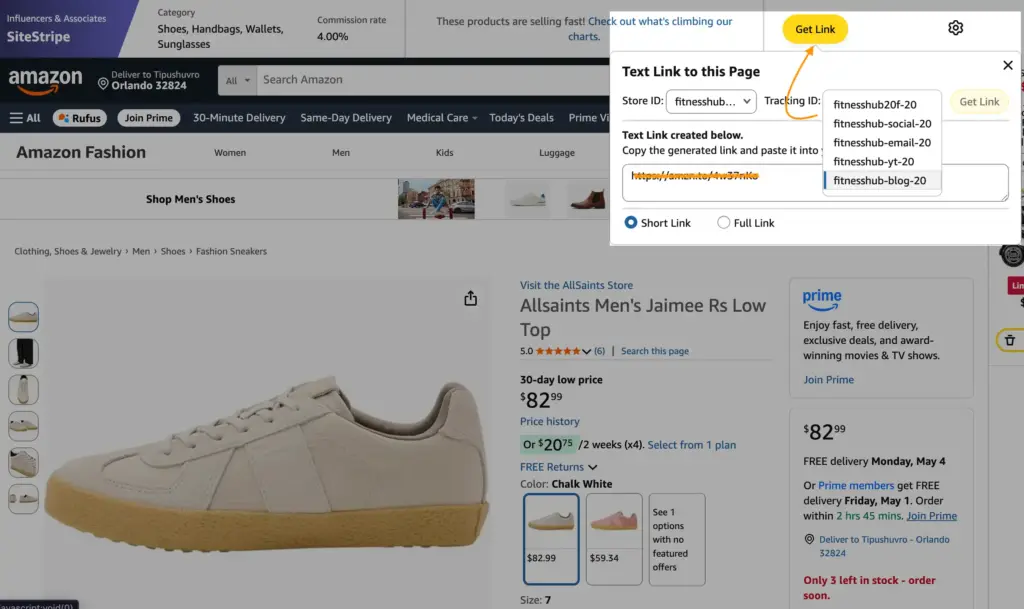
Once you’re inside your dashboard, click on the three lines located in the top right corner beside your store ID. A dropdown will appear.
Click on Account > Account settings > Manage Your Tracking IDs.
Step 3: Click “Add Tracking ID”
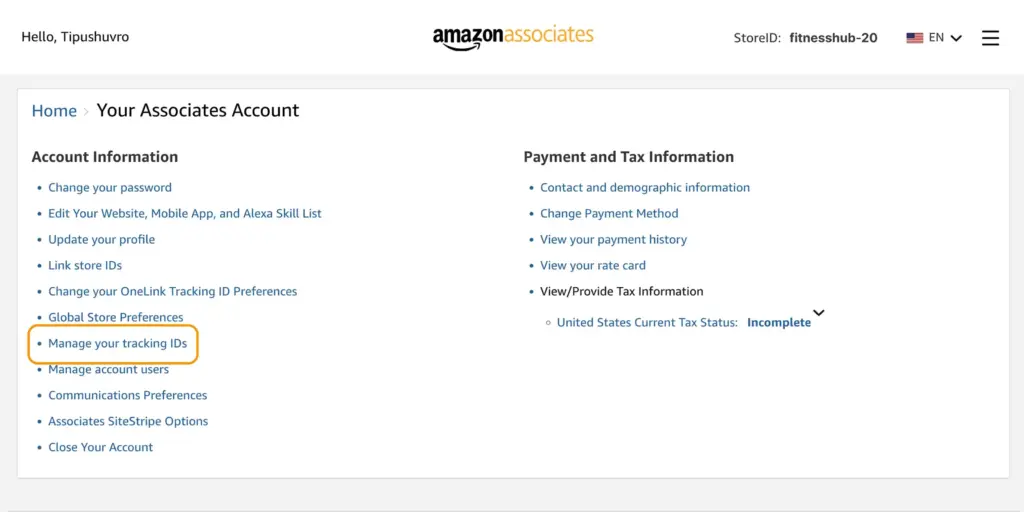
You’ll see a list of your existing tracking IDs (or just your default one if you’re new). Look for the button that says “Add Tracking ID” and click it.
Step 4: Enter your new tracking ID
Type in the name you want for your new tracking ID. Keep it descriptive so you remember what it’s for. For example:
- yoursite-blog-20 for your blog
- yoursite-yt-20 for your YouTube channel
- yoursite-email-20 for your email newsletter
Step 5: Click “Create”
Hit the “Create” button, and you’re done. Your new tracking ID is live and ready to use.
Step 6: Start using it in your links
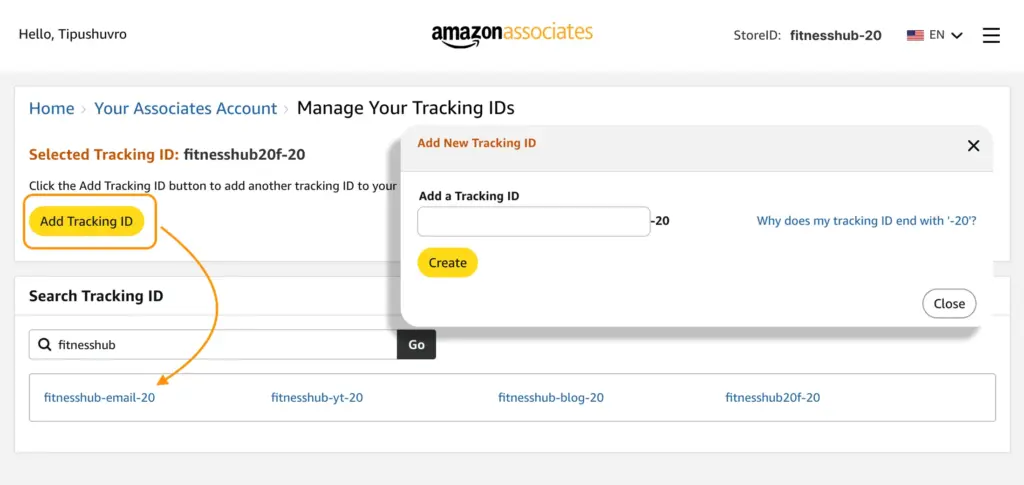
When you generate affiliate links through the Amazon Associates SiteStripe bar or link builder, you can select which Amazon affiliate tracking ID to attach to each link.
That’s it. The whole process takes under two minutes, and you can repeat it as many times as you need.
Why do I need multiple tracking IDs?
This is where things get really interesting for anyone serious about affiliate marketing.
Using a single Amazon Associates tracking ID across all your content is like trying to manage multiple businesses with one bank account. Technically, it works, but you’ll never really know what’s performing.
Multiple tracking IDs let you see exactly where your sales are coming from.
Say you become an Amazon affiliate promoting a home office chair. You write a blog post about it, make a YouTube review, and include it in your email list.
If all three links share the same affiliate tracking ID, you’ll see commissions coming in, but you won’t know if it’s the blog post working, your YouTube video doing the heavy lifting, or your email subscribers who are actually buying.
With separate tracking IDs, that problem disappears instantly.
Some common ways affiliates use multiple tracking IDs:
- One ID per website or blog
- One ID per social media platform (Instagram, Pinterest, Facebook)
- One ID per YouTube channel
- One ID per email campaign or newsletter
- One ID per content category (reviews, roundups, tutorials)
This kind of granular tracking helps you double down on what works and stop wasting time on what doesn’t.
What’s the Amazon affiliate tracking ID limit?
Amazon allows you to create up to 100 tracking IDs per Associates account. For most affiliate marketers, that’s more than enough. But if you’re running a large operation with dozens of websites, campaigns, and platforms, you might find yourself bumping up against that ceiling.
If you genuinely need more than 100 tracking IDs, you can reach out to Amazon Associates customer support directly.
There’s no public policy guaranteeing they’ll extend your limit, but contacting their support team and explaining your business model is the right first step.
Some large publishers have had success getting additional IDs approved by making a case for their traffic volume and content scope.
Get access to our exclusive offers and pro tips!
How to delete my tracking IDs
There are real situations where deleting a tracking ID makes sense. Maybe you shut down a website, ended a campaign, or simply created too many IDs, and things are getting messy. Whatever the reason, here’s how to clean things up.
When should you delete a tracking ID?
- You’ve shut down a website or stopped a campaign
- You created test IDs you no longer need
- You’re reorganizing your tracking structure for better clarity
- You want to remove IDs attached to platforms you no longer use
Step-by-step guide to delete a tracking ID:
Step 1: Log in to your Amazon Associates account
Step 2: Go to Account > Account settings > Manage Your Tracking IDs.
Step 3: Find the tracking ID you want to remove from the list.
Step 4: Click the “Delete” option next to that tracking ID.
Step 5: Confirm the deletion when prompted.
One important thing to keep in mind: once you delete a tracking ID, any existing links using that ID will stop tracking properly. Amazon won’t credit commissions to a deleted ID.
So before you delete anything, make sure you’ve either updated those links or you’re genuinely okay with them no longer being tracked.
Wrapping up
An Amazon affiliate tracking ID is a unique tag that lets you track the performance of different websites, platforms, or marketing strategies, all while funneling your earnings into one single Associates account.
Whether you are a beginner just getting your feet wet with the Amazon Associates program or a seasoned content creator juggling multiple platforms, setting up proper tracking IDs from day one puts you in control.
You will know which blog post is converting, which platform your buyers prefer, and where to put your next piece of content.
It takes a few minutes to set up. The clarity it gives you lasts as long as you are in the game.





Read Similar Blogs
We build lasting partnerships to boost and manage revenue growth



Leave a Reply