
How to Get an Amazon Affiliate Link: A Step-by-Step Guide
So, you’ve decided to dive into the world of affiliate marketing. Smart move! Amazon Associates is one of the most trusted programs on the planet, and for good reason. But once you’re in, the first question that usually pops up is: how to get an Amazon affiliate link now?
Because we’ve all been there, scrolling through Amazon, finding a product we love, and wanting to tell the world about it.
But as an affiliate, you can’t just copy the URL from your browser’s address bar, use it, and expect commissions. You need a specific link that tells Amazon, “Hey, this person sent me!”
It sounds simple, but if you’re staring at a product page and can’t find the “magic button,” it can be a bit frustrating.
So, in this guide, I’m going to show you exactly how to create Amazon affiliate links on both desktop and mobile, so you can start sharing your favorite finds and earning those commissions.
What is an Amazon affiliate link?
Before we get into the “how,” let’s clear up what is an Amazon affiliate link?
Basically, it’s a unique URL that contains your Associate ID or Tracking ID. When a customer clicks on this link and buys something within the Amazon cookie duration, Amazon knows to credit you with the sale. Think of it as a digital breadcrumb that leads back to your account.
An Amazon affiliate link example looks like this: https://amzn.to/3xyz123. It’s a short and clean URL. Behind that short link is all the tracking data needed to make sure you get paid.
Sign up for the Amazon affiliate program
Before you can generate a single Amazon affiliate link, you need to be a member of the program. Joining is free, but you do need to have a platform (like a blog, YouTube channel, or social media following) where you’ll be sharing your links.
That means you need to match the requirements of the Amazon Associates program.
Here is the quick breakdown of the registration process:
- Visit the Amazon Associates Homepage: Go to the official Amazon Associates website and click “Sign Up.” You can log in with your existing Amazon shopping account or create a new one specifically for business.
- Enter Your Account Information: Provide your basic contact details and the primary address where payment will be sent. Ensure this matches your legal identification for smooth tax processing later.
- List Your Websites and Apps: Enter the URLs of the websites, social media profiles, or mobile apps where you plan to promote products. You can list up to 50 different platforms in this section.
- Create Your Profile: Choose a preferred Store ID (usually your brand name) and explain what your website is about. You’ll also need to select the categories of Amazon products you intend to list.
- Explain Your Traffic Generation: Detail how you drive visitors to your site (like SEO, Social Media, or Email) and how you currently monetize your content. This helps Amazon verify that your platform is a good fit.
- Verify Your Identity: Enter your phone number and wait for the automated verification call or text. Once verified, you’ll agree to the Operating Agreement, and your application is complete.
Now you’re ready to make an Amazon affiliate link for your affiliate website.
If you’re not registered yet, here is a detailed guide for you on “How to Become an Amazon Affiliate Marketer.”

How to get an Amazon affiliate link
So, let’s get to the main point. Once your account is active, the fun part begins! There are two main ways to create Amazon affiliate link: using a computer or using your phone.
I’ll take you to both processes.
How to make an Amazon affiliate link on a desktop
You can get an Amazon affiliate link on a desktop following the traditional way or using the SiteStripe tool.
The traditional way
- Log in to Amazon Associates.
- Click “Product Linking” ➡️ “Product Links” from the top menu.
- Search for the product by entering a keyword, ASIN, or URL.
- Click “Get Link” next to the desired product.
- Customize the link if needed, then copy and share it wherever you want to.
The problem here is that the traditional way takes more time and effort just to generate a simple link.
SiteStripe toolbar
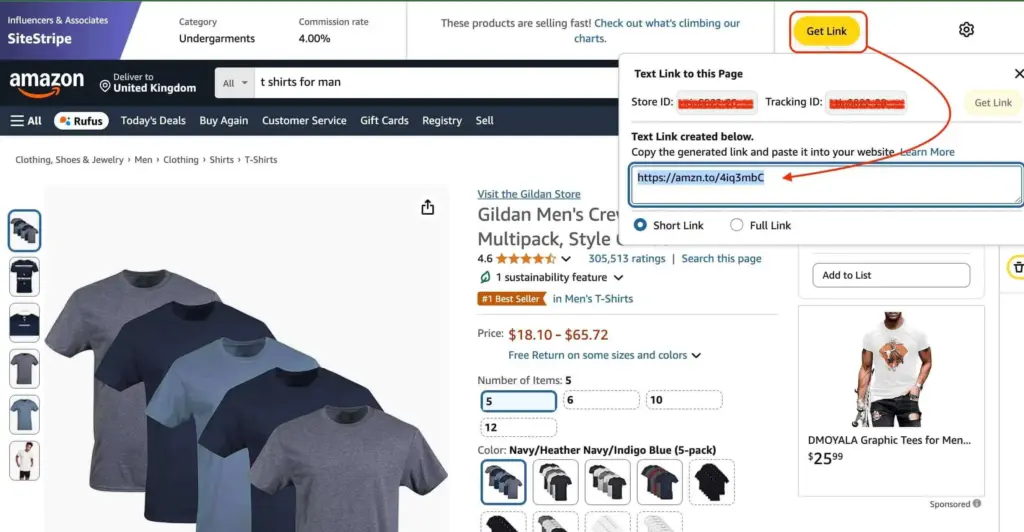
The easiest way to generate Amazon affiliate links for desktop users is to use the SiteStripe tool. It’s basically a built-in Amazon affiliate link generator that sits right at the top of every Amazon page.
Enable SiteStripe
If you don’t see a gray bar at the top of your Amazon screen when logged in, you need to turn it on. Log in to your Amazon Associates Central account, go to Tools, and select SiteStripe. From there, click “Learn More” and make sure the “Display Status” is set to “Enabled.”
Get a text link
With SiteStripe, all you need to do is browse Amazon just like a normal shopper. Once you find a product you’re excited to promote, Amazon’s SiteStripe tool comes into play.
- Go to the specific product page you want to promote.
- In the SiteStripe bar, click on Get Link.
- You’ll see your Store ID and Tracking ID here.
- Copy the short link or the full link provided.
That’s it! You’ve just learned how to get an Amazon affiliate link in about five seconds.
Get image or hybrid links:
If you are a blogger, you might want more than just text. SiteStripe also lets you click on Image or Text+Image. This generates a piece of HTML code that you can paste into your website to show the product photo and price alongside your link.
Create Amazon affiliate link on Mobile (GetLink)
You don’t always need a laptop to stay productive. You can also do that with your mobile.
You can easily create amazon affiliate link directly from the Amazon Shopping app using a feature called Mobile GetLink.
- Open the Amazon app (make sure you’re logged into the same account used for Associates).
- Find the product you want to share.
- Tap the Share icon (the little arrow or box).
- Look for the Copy Associates Link button.
- Tap it, and the link is copied to your clipboard, ready for your Instagram story or a quick text to a friend.
Get access to our exclusive offers and pro tips!
Essential rules and compliance
Now that you know how to get an Amazon affiliate link, you need to keep it safe. Amazon is very strict about its rules. If you break any of them, they might close your account, and nobody wants that!
- Disclosure is key: You must add an affiliate disclosure and tell your readers that you earn a commission. A simple “As an Amazon Associate, I earn from qualifying purchases” is usually enough.
- No link shorteners: Only use the official Amazon affiliate link generator (SiteStripe) for short links. Don’t use Bitly or other third-party services to hide affiliate Amazon links.
If you use AzonPress, an Amazon affiliate marketing plugin, you can easily cloak your affiliate links as this plugin offers a ZERO API feature. - Don’t use links in emails: Generally, Amazon doesn’t want you putting links in “offline” content like PDFs or private emails. Stick to your public-facing platforms.
- The Amazon affiliate link checker: If you’re ever unsure if a link is working, you can use the Amazon affiliate link checker tool inside Associates Central to verify it’s tracking correctly.
How to add Amazon affiliate link to WordPress
By now, you know how to get Amazon affiliate links, which tool to use, and how to check those links. The real question is where to use them or how to add Amazon affiliate link to WordPress?
Well, you’ll need an Amazon affiliate plugin for this. Our recommendation is AzonPress, because this tool makes the process as simple and efficient as possible.
This way, you don’t even need to go through the manual process of creating Amazon affiliate links.
- Go to your AzonPress dashboard ➡️ Custom Products ➡️ Add Custom Product
- Single product template ➡️ Copy and paste the Amazon product link ➡️ Continue
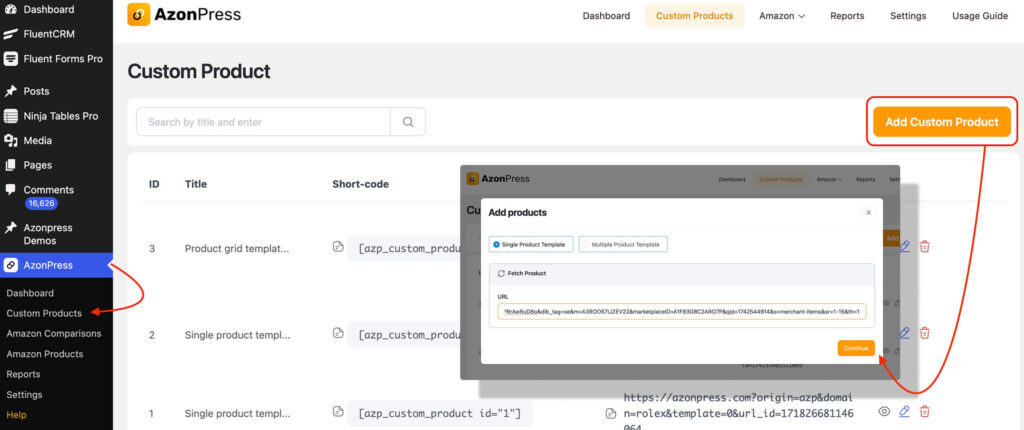
AzonPress will fetch all the data and create an Amazon affiliate link for you.
Another key point is, where Amazon doesn’t allow anyone to edit or modify any information, with AzonPress you can do everything.
You can literally customize everything with this plugin.
Just click on “Edit,” and you can change the title, product description, images, and even pricing to make it SEO friendly, which no plugins or tools can do.
Make your changes, click Update & Save Template ➡️ Preview.
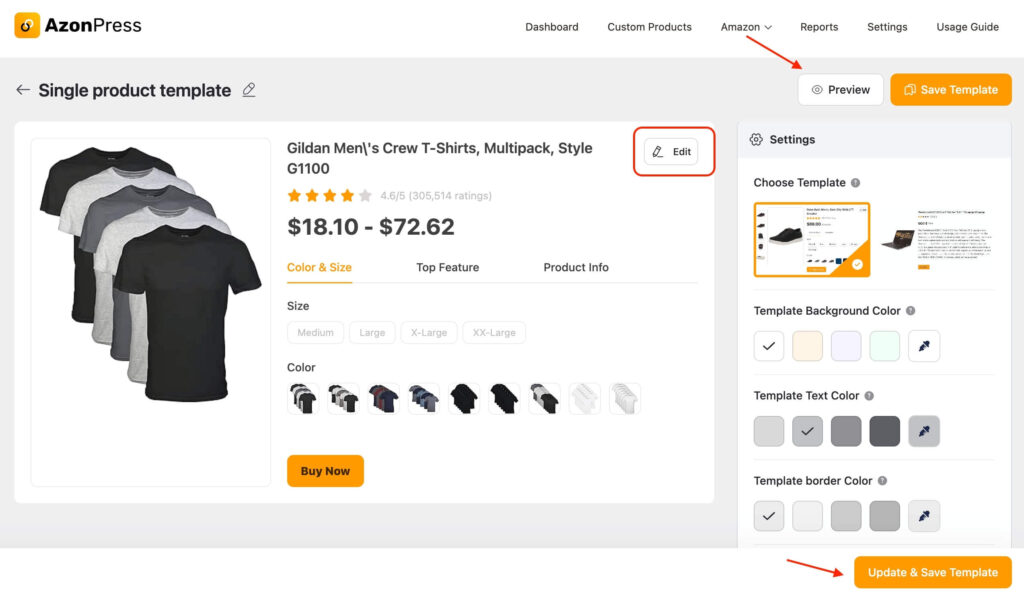
Copy the shortcode and place it anywhere on your website. Whenever someone clicks the Buy Now button, it’ll redirect to the Amazon product page with your affiliate link.
You can also create Amazon comparison tables automatically with AzonPress.
Wrapping up
Once you understand how to get an Amazon affiliate link, the possibilities are endless. Whether you are writing a deep-dive review on your blog or sharing a “must-have” gadget on social media, these links are what turn your content into a business.
Remember to keep your links organized, follow the compliance rules, and most importantly, be honest with your audience. People buy from those they trust. Happy linking!





Read Similar Blogs
We build lasting partnerships to boost and manage revenue growth


Leave a Reply