

No API Access? Promote Amazon Products With AzonPress


You got approved for Amazon Associates. You picked a niche, wrote your first reviews, and installed an affiliate plugin.
Then it asked for API credentials you don’t have.
Most Amazon affiliate plugins start with the same step: enter your Amazon API keys.
That’s a problem when you don’t have any. Amazon now gives API access only to affiliates who are already making regular sales. New affiliates end up with plain text links, while the product boxes they wanted sit empty.
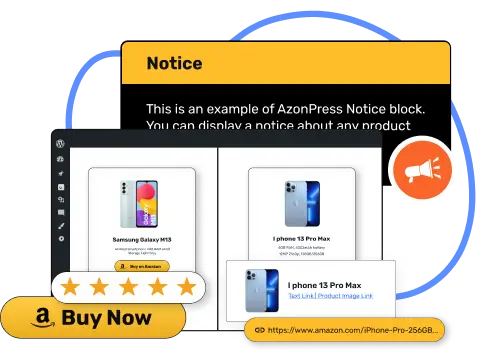
AzonPress handles this differently. Its zero API feature lets you add Amazon products to WordPress using a product link instead of API keys. You get a product display with an image, product details, and a buy button, ready to place in any post.
This guide shows you how it works, how to set it up step by step, and how to keep your no-API product displays accurate and within Amazon’s rules.
So, let’s get started.
TL;DR
Can you promote Amazon products without API?
Yes.
To promote Amazon products, you need an approved Amazon Associates account and your tracking ID. The API isn’t required.
The API only automates product data like prices and availability. Your commission comes from the tracking ID attached to your affiliate links. As long as that tag is in the link, Amazon credits you for the sale.
What you lose without the API is automatic product data updates. That’s why the method matters. A plugin like AzonPress lets you build proper product displays without API keys, so your readers still see a clean product box instead of a bare text link.
Why most new Amazon affiliates don’t have API access?
In 2026, Amazon retired its old Product Advertising API (PA-API 5.0) and replaced it with the Creators API.
The new API has a stricter entry rule. You need at least 10 qualified sales in the previous 30 days before Amazon issues your credentials.
Compare that with what it takes to stay in the program. Amazon Associates asks for just 3 qualifying sales in your first 180 days.
So you can be a fully approved affiliate and still be months away from API access. A new review site getting 3,000 visits a month might make a handful of Amazon sales. That keeps the account active, but it doesn’t meet the API threshold.
This is the gap AzonPress custom products are built for.
Once you qualify for the Amazon Creators API, connect it with AzonPress so your product data stays up to date without manual edits.
How AzonPress work without the Amazon API?
AzonPress is an affiliate plugin for WordPress. Some of its features, like Amazon product tables, can pull live data through the Amazon API. The Custom Products feature works without it.
Here’s what you can do with custom products:
- Add products by URL or manually: Paste an Amazon product link, and AzonPress fetches the details, or fill in the product information yourself.
- Choose single or multiple product templates: Use a single product box for a review, or show several products together for a roundup.
- Edit every detail: Change the product info, metadata, image, and button, including button text and color.
- Attach your tracking ID automatically: Add your Amazon tag once, and AzonPress adds it to your custom product links.
- Embed with a shortcode: Each custom product gets its own shortcode you can paste into any post or page.
- Promote more than Amazon: The same feature works with eBay and Etsy. You can manually add products from any platform of your choice with this feature.
Now let’s see how to set it up.
Steps to promote Amazon products without API using AzonPress
Before you start, make sure you have:
- An approved Amazon Associates account
- Your Amazon tracking ID (it looks like yourstore-20)
- AzonPress installed and activated on your WordPress site
Step 1: Add your Amazon tracking ID
This is the most important step. Without your tracking ID, clicks won’t earn you commissions.
- Go to Settings from the AzonPress navbar and click Affiliate Link Configuration.
- On the Global Affiliate Link Configuration page, find the amazon.com domain.
- In the Link query params field, enter your tag, like tag=yourstore-20.
- Click Save.
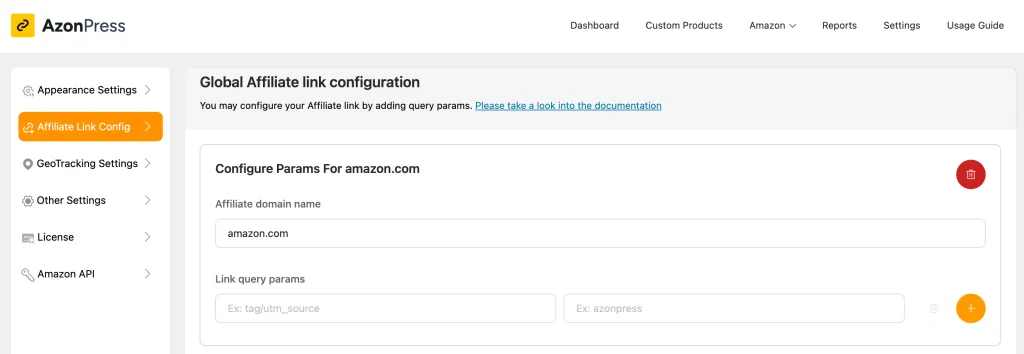
Global settings apply to all your custom product links. If you promote a different Amazon store, like amazon.co.uk, click Add new domain and set up its tag the same way.
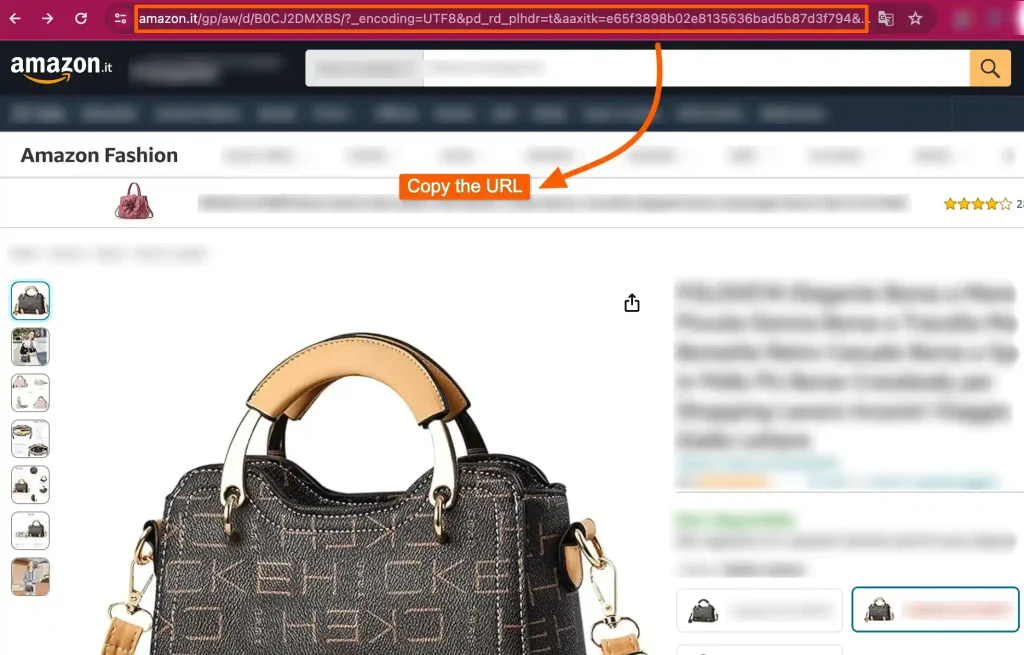
Step 2: Copy the Amazon product link
Log in to your Amazon Associates account and search for the product you want to promote. Open the product page and copy the URL from your browser’s address bar.
Step 3: Add a single custom product
- Go to Custom Products from the WordPress sidebar or the AzonPress navbar.
- Click Add Custom Product.
- A popup will appear with two options: you can either select Single product template or Multiple product template. (For this blog, I am selecting Single Product Template)
- Paste your Amazon product link into the URL field.
- Click Continue.
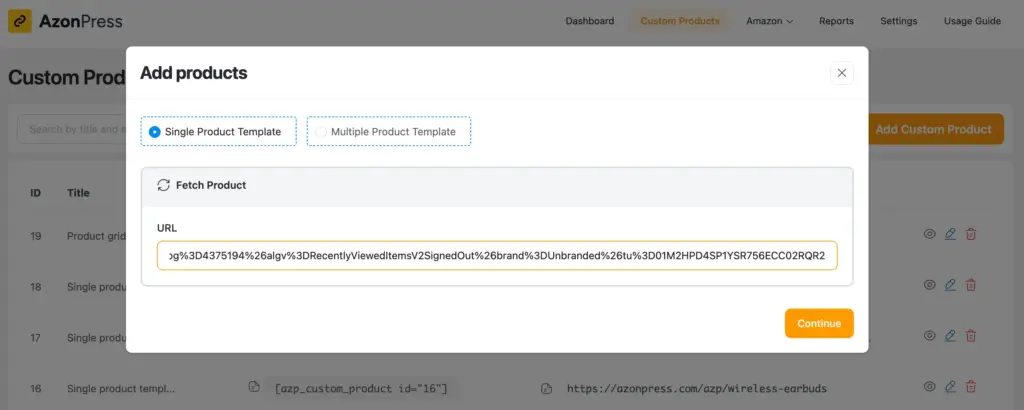
AzonPress adds the product and fetches its details. Every custom product needs a Title, so make sure that field isn’t empty. AzonPress won’t save a template without one.
Step 4: Edit the product details
Click the pencil icon to open your product, then click Edit. A pop-up will show all the editing options:
- Product info
- Product metadata
- Image
- Button, including text and color
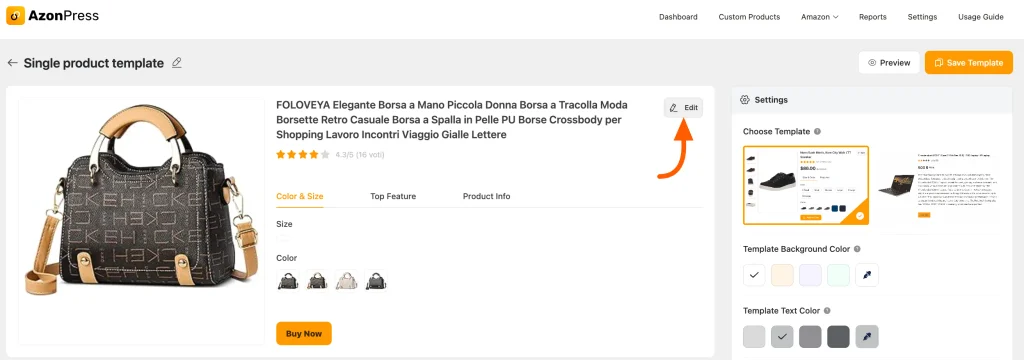
This is where you make the product box yours. Instead of repeating Amazon’s product bullets, write details that fit your content. Click Update to save your changes. You’ll see a preview of the edited product.
Step 5: Add the product to your post or page
Go back to your custom products dashboard. Each product shows its ID, title, and shortcode.
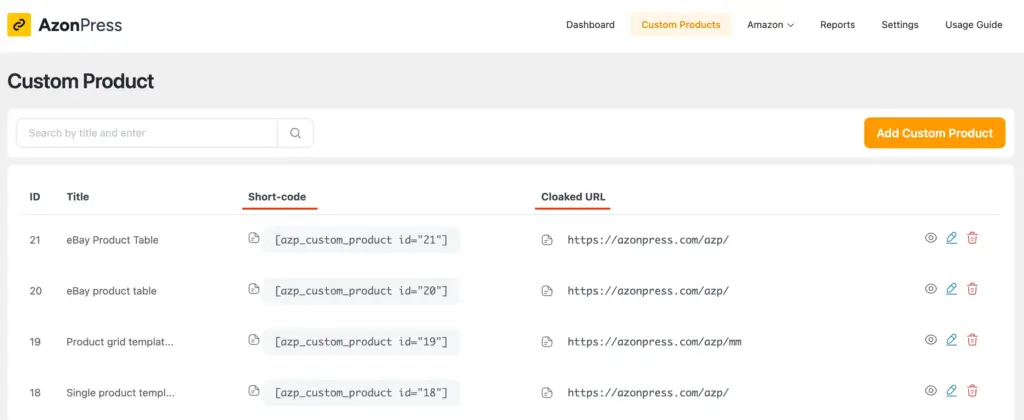
Copy the shortcode, open the post where you want the product, and paste it into a shortcode block. Use the Preview button on the dashboard to check how it looks before you publish.
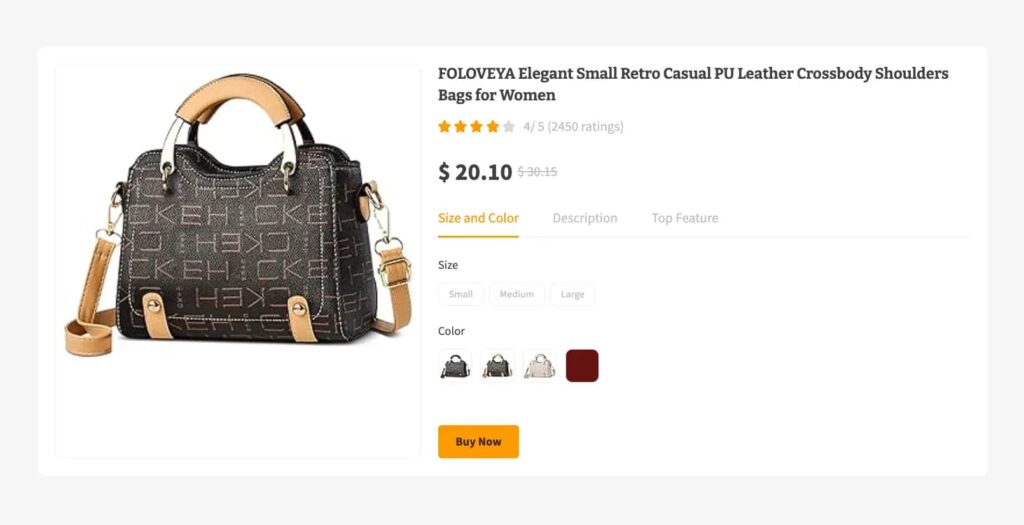
Here is the preview of how your Amazon product table looks.
Want to earn beyond Amazon? Follow our guide to promoting eBay products without API and add a second income stream to your site.
How to add multiple Amazon products for roundups?
If you’re writing a review for books and want to display them on your post, you can do so with AzonPress. The Multiple Product Template puts several products in one display.
- Go to Custom Products and click Add Custom Product.
- Select Multiple Product Template.
- Search Amazon for the products you want, like “best books for adults,” and paste the results page URL into the URL field.
- Type a name into the Tracking ID field, like best books for adults. This field is only a label to help you find the template later. It’s not your Amazon tag.
- Click Continue.
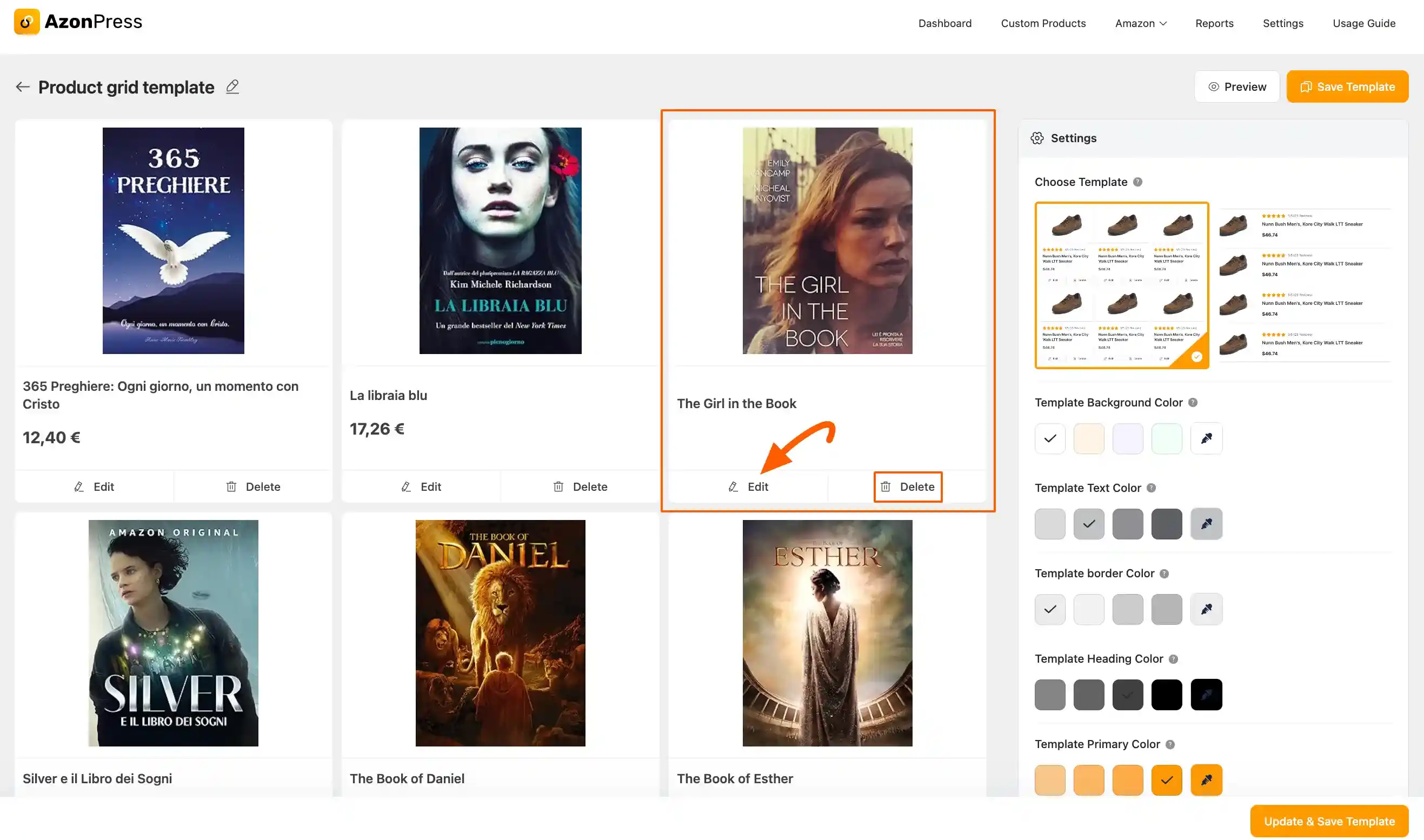
Then open the template with the pencil icon. You can edit each product one by one, including its info, image, and rating, and delete any product that doesn’t fit your list.
Click Save Template or Update & Save Template, then copy the shortcode into your post.
Manage links, create product tables, and comparison tables, and increase your affiliate revenue
Ways to keep No-API product displays accurate and up to date
With AzonPress custom products, you control every detail in your product box. Keeping those details current is up to you, and each update takes just a few clicks.
Check prices regularly: Amazon prices change often, especially during sales like Prime Day. Check each price on Amazon and update it accordingly.
Replace outdated or discontinued products: When a listing changes or a product becomes unavailable, update its details or swap it for a new custom product.
Confirm your tracking ID: Open the product’s Preview, click Buy Now, and check that your tag appears at the end of the URL. No tag means no commission.
Use your own photos and ratings: Upload your own product photos (if you tried it in real life), and use your own score in the rating field, like “Our rating: 8.5/10.”
Update once, fix everywhere: Since products are embedded by shortcode, one edit in AzonPress updates the product on every page that uses it.
Finally, add “As an Amazon Associate, I earn from qualifying purchases” to your site and near your product boxes.
Before you publish, read our guide to Amazon affiliate requirements so a small mistake doesn’t put your account at risk.
When should you connect the Amazon API?
Custom products can carry your site for a long time. But once you’re consistently making 10 or more sales a month, it’s worth applying for Creator API credentials.
With the API connected, you can use AzonPress features that rely on live Amazon data, like product tables, comparison tables, and bestseller lists. Follow the Configure API guide to connect it.
You don’t have to give up custom products when you switch. Keep using them for eBay and Etsy products, or for reviews where your own write-up and photos do more work than Amazon’s listing.
Start promoting Amazon products without API dependency
The sales you make with custom products are the same sales that qualify you for the Creators API. So every product box you add now moves you closer to live Amazon data later.
Pick your best-performing post and add one product box this week. Track the clicks in your Amazon reports, then add products to your next few posts. Once you’re making 10 sales a month, connect the API and let AzonPress handle the live data.
I’ve tried my best to help you learn how to promote Amazon products using AzonPress, without needing API credentials. Hope you’re clear now. If you have any questions, just drop a comment below; I love helping out.
Thanks for reading.
Ciao!


Frequently asked questions
Here are some frequently asked questions regarding “how to promote Amazon products without API”.
1. Do I need the Amazon API to join Amazon Associates?
No. Joining Amazon Associates and getting API access are separate. You can get approved, create affiliate links, and earn commissions without the API.
2. Can I add Amazon products to WordPress without API?
Yes. With AzonPress custom products, you paste an Amazon product link, and AzonPress creates a product display you can embed in any post with a shortcode.
3. Will I still earn commissions without the API?
Yes, as long as your links carry your Amazon tracking ID. In AzonPress, you add it once under Settings > Affiliate Link Configuration, and it’s attached to your custom product links.
4. Can I show several Amazon products together without API?
Yes. Use the Multiple Product Template to show several products in one display, which works well for “best of” roundups and gift guides.
5. Can I use AzonPress custom products for stores other than Amazon?
Yes. Custom products also work with eBay and Etsy, and you can add links manually from other affiliate programs.



Read Similar Blogs
We build lasting partnerships to boost and manage revenue growth



Leave a Reply