

Amazon Creators API: A Beginner-Friendly Setup Guide


If you have ever manually added Amazon affiliate links to your website, you already know how frustrating the process can be. Product prices change, items go out of stock, and product images become outdated before you even notice.
Keeping everything updated manually takes time and can easily lead to broken links, inaccurate information, and lost commissions.
That is where the Amazon Creators API comes in.
The Amazon Creators API lets your website automatically pull live product data directly from Amazon. This includes updated prices, product images, availability, and affiliate links, so your content stays accurate without constant manual work.
In this beginner-friendly guide, you will learn what the Amazon Creators API is, how to generate your API credentials step by step, and how to connect it with AzonPress to automate your Amazon affiliate workflow inside WordPress.
By the end of this tutorial, you will have a fully working Amazon API integration, even if you have never worked with APIs before.
TL;DR
Manually managing Amazon affiliate products can be frustrating when prices, images, and availability constantly change. This guide shows you how to set up the Amazon Creators API and connect it with AzonPress to automate product imports inside WordPress.
– The Amazon Creators API lets your site pull live Amazon product data automatically
– You need an active Amazon Associates account with qualifying sales to access the API
– AzonPress also offers a Zero API solution for beginners who do not yet have API access
– Setting up the API involves creating credentials from your Amazon dashboard
– Once connected, AzonPress can import Amazon products using keywords or ASINs
– You can quickly create Amazon product tables and affiliate showcases inside WordPress
What is Amazon Creators API?
The Amazon Creators API is an official interface provided by Amazon that lets approved Amazon Associates retrieve product data programmatically. In simple words, it is a bridge between Amazon’s massive product database and your website.
When you connect to the Amazon Creators API, your site can:
- Fetch live product titles, descriptions, prices, and images
- Generate valid affiliate links automatically
- Detect when a product is out of stock or discontinued
- Display up-to-date pricing without any manual effort
How does it relate to Amazon associates?
Amazon Associates is the affiliate program itself, the program that pays you commissions when visitors click your links and buy products. The Amazon Creators API is a tool within that program that developers and plugin users can access to automate product data retrieval.
Think of Amazon Associates as your membership card, and the Amazon Creators API as a special key that unlocks a door to Amazon’s live product database. You need both to run a fully automated affiliate product showcase.
Benefits of using Amazon Creator API
Here is why thousands of affiliate marketers have made the switch from manual linking to API-powered product displays:
Automatic product updates: Prices on Amazon change frequently, sometimes multiple times per day. The API keeps your displayed prices accurate in real time, ensuring your visitors always see the correct price before they click through.
Real-time availability checks: The API detects when a product goes out of stock and can automatically hide that product or suggest alternatives. This reduces bounce rates and protects your user experience.
Faster content creation: Instead of manually searching Amazon, copying affiliate links, and formatting product boxes by hand, tools like AzonPress handle it all. You search for a product inside WordPress and add it to your page in seconds.
Better-looking affiliate displays: API-powered plugins like AzonPress generate professional comparison tables, product grids, and best seller boxes, all with accurate data pulled directly from Amazon. These displays convert far better than plain text links.
Amazon policy compliance: Amazon’s operating agreement requires that affiliate links use up-to-date product information. The API helps you stay compliant automatically by always pulling the latest data.
Get access to our exclusive offers and pro tips!
Eligibility Criteria for getting Amazon Creators API
Before you can access the Amazon Creators API, you must meet a few important requirements.
Many tutorials skip this section, which is why so many beginners get frustrated. Follow the criteria below to get the Amazon Creator API.
1. An active Amazon Associates account
You must be a registered Amazon Associate. If you are not signed up yet, visit the Amazon Associates website for your region and apply. The registration process is straightforward and free.
2. Qualifying sales
Amazon requires you to generate at least ten qualified sales within the first 30 days of your Associates account before API access is granted. This requirement exists to confirm that your site is genuinely active and driving real traffic.
Important: Many beginners apply for API access immediately after signing up and are rejected. Focus on generating your first few sales through manually created affiliate links, then apply for API access.
3. Ongoing sales requirement
Amazon requires affiliates to maintain at least 10 qualifying sales within 30 days to keep access to the Creators API active. If your account does not meet this requirement, your API access may be temporarily suspended.
The good news is that once your account starts generating qualifying shipped sales again, Amazon usually restores API access automatically within a few days.
If you are just starting out and do not yet qualify for API access, AzonPress can still help. With its Zero API feature, you can create and promote Amazon affiliate product displays without connecting to the Creators API.
This allows you to start driving traffic and generating sales first. Once you meet Amazon’s requirements and gain API access, you can easily connect your credentials and continue automating your affiliate workflow with AzonPress.
No Amazon API access yet? Create custom affiliate product tables easily with AzonPress
How to get Amazon Creators API credentials
After meeting the eligibility criteria for getting Amazon Creator’s API access, follow the steps mentioned below to get the Amazon Creator’s API credentials.
Step 1: Sign in to Amazon Associates
Go to affiliate-program.amazon.com and log in with your Amazon account. Make sure you are using the same account that your Associates membership is registered under. Once logged in, you will see your Associates Central dashboard.

Step 2: Navigate to the API access section
After logging into your Amazon Associates account, go to the Tools menu from the top navigation bar and select Creators API.
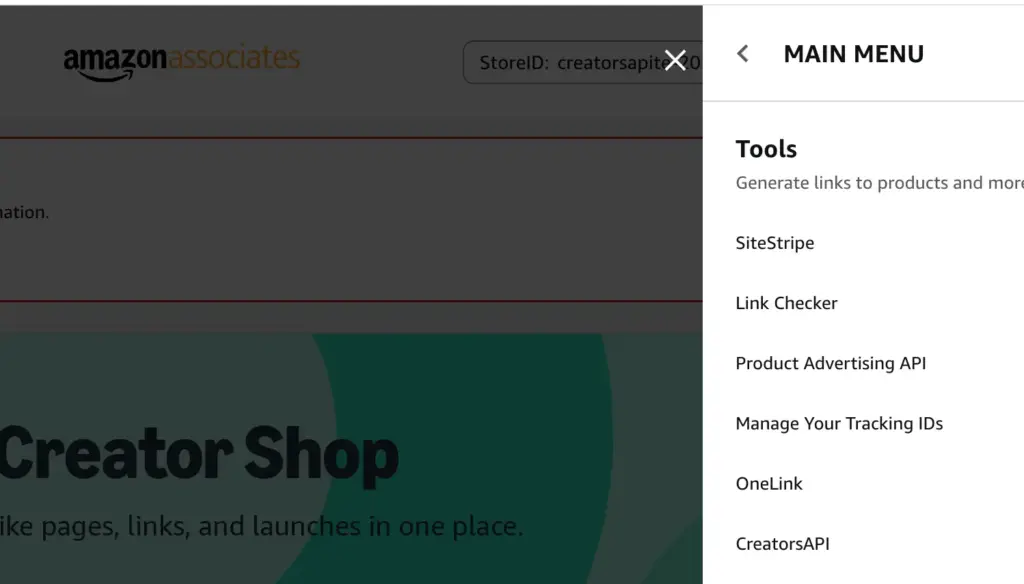
You can also access the dashboard directly by visiting the Amazon Creators API page. Once you open the dashboard, you will be able to manage your API applications and generate credentials for your affiliate tools.
Step 3: Apply for API access
If your account is eligible, you will see an option to apply for API access. Click Apply for Access and fill in the short application form.
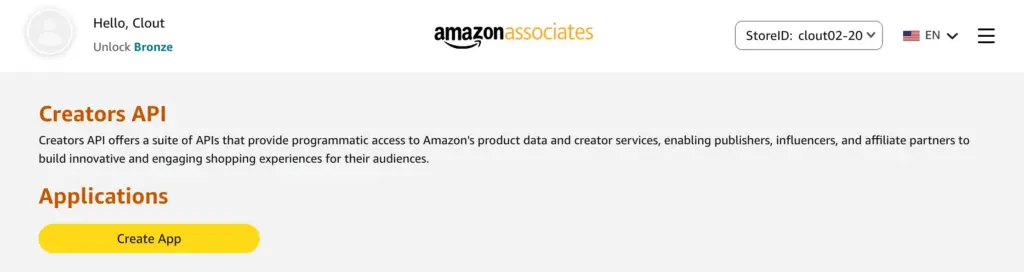
Amazon will ask about your website, how you plan to use the API, and your expected usage volume. Answer honestly, there are no wrong answers for a legitimate affiliate site.
Amazon typically approves API access within a few minutes for eligible accounts, though in some cases it may take 24 to 48 hours.
Step 4: Generate your API credentials
Once your application is created, click Add New Credential.
Amazon will instantly generate the API credentials required to connect your website or plugin with the Amazon Creators API. These usually include:
- Credential ID – a long string of letters and numbers
- Credential secret – another long string (keep this private)
- API version – the current version of the Amazon Creators API
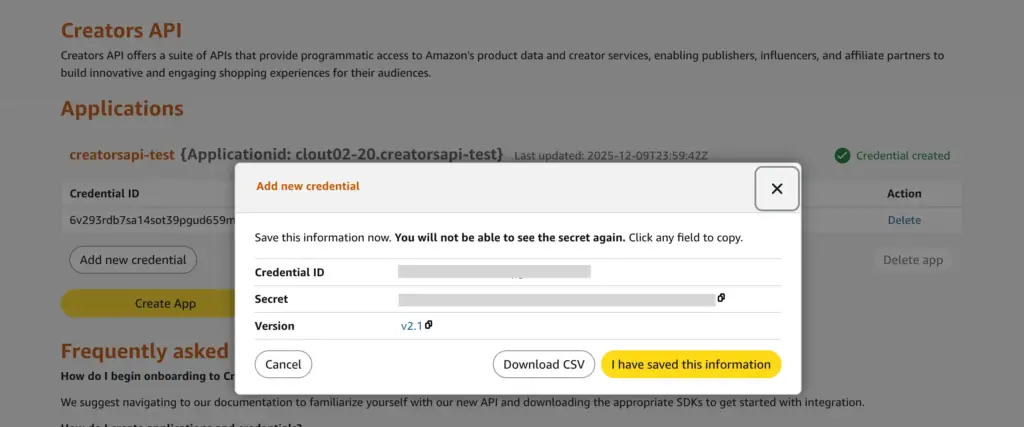
Copy these details immediately or download them as a CSV file for backup.
Important: Amazon only shows the Credential Secret once. If you lose it, you may need to generate a new credential later. To avoid issues, store your credentials securely in a password manager or a private document.
Connect Amazon Creators API With AzonPress
AzonPress is a WordPress plugin designed specifically for Amazon affiliates. It takes your API credentials and handles all the technical complexity of fetching and displaying Amazon products. Instead of manually updating affiliate links and product information, AzonPress helps automate the entire process using the Amazon Creators API.
The plugin also comes with Gutenberg support, customizable layouts, shortcode support, and advanced affiliate link management features to make Amazon affiliate marketing easier inside WordPress.
Once your Amazon Creators API credentials are ready, AzonPress handles the technical part for you by automatically fetching live product data such as titles, prices, images, availability, and affiliate links directly from Amazon.
Here is how to connect your credentials and start importing Amazon products with AzonPress.
Step 1: Install and activate AzonPress
AzonPress is a premium affiliate marketing plugin, so the first step is to purchase the plugin.
After completing your purchase, you’ll get access to the WPManageNinja Dashboard. Log in with your account credentials, and under the My Products section, you’ll find AzonPress if you’ve already purchased it.
- Now download the ZIP file.
- Then go to your WordPress dashboard > Plugins > Add New> Upload plugin.
- Choose the ZIP file, click Install Now, and activate the plugin once it’s installed.
Step 2: Open the API settings page
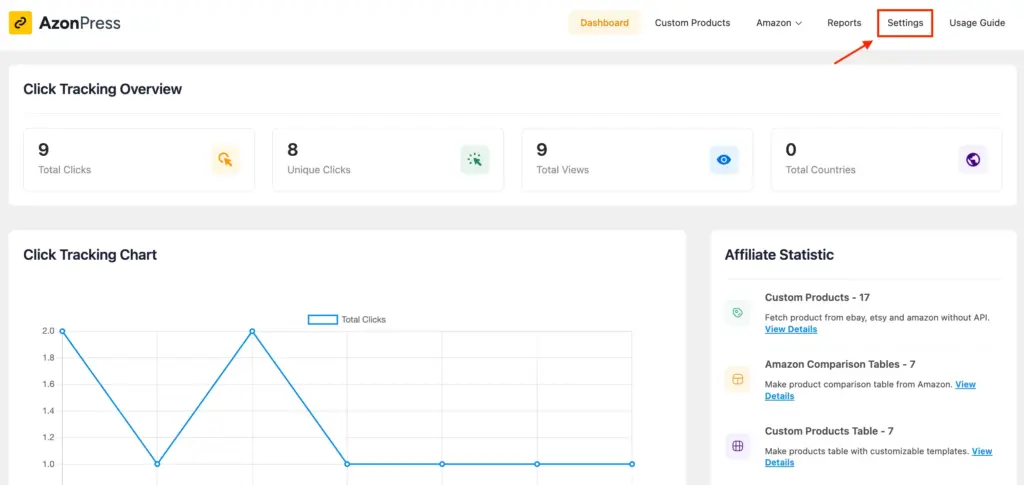
Then go to the AzonPress dashboard and click on the settings from the navbar.
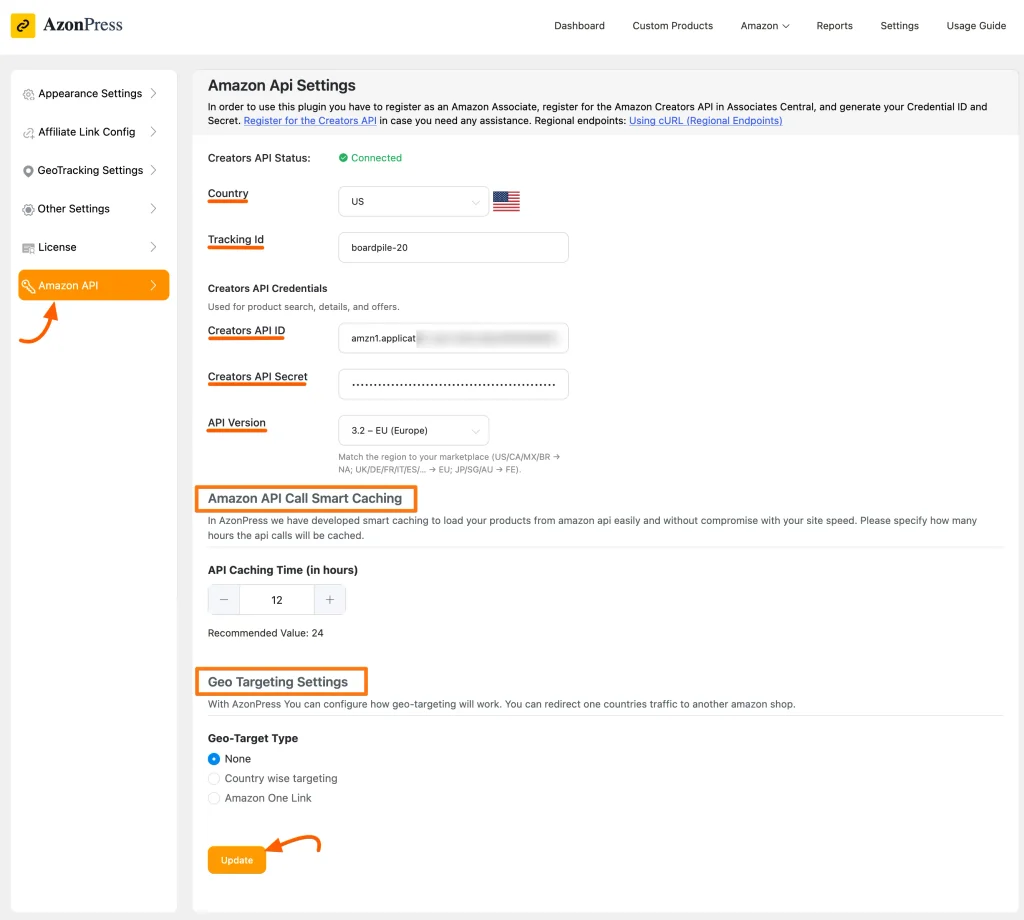
- There you’ll find the options to enter your credentials. Paste your API credentials. When you’re done, press the “Updates” button. AzonPress can now retrieve product data from Amazon via the Creators API.
Step 3: Test product import
Once the connection is successful, AzonPress will start fetching live product data directly from Amazon.
Now it is time to test the integration.
Go to your AzonPress dashboard and search for a product using a product keyword or ASIN. Then import the product to check whether the API connection is working properly.
If everything is configured correctly, AzonPress will automatically pull product details such as:
- Product title
- Images
- Pricing
- Availability
- Affiliate links
After importing products successfully, you can start creating Amazon product tables, comparison tables, bestseller lists, and product showcases directly inside WordPress.
Let’s check how it works.
Step 4: Create Amazon product table
Now that your Amazon Creators API is connected successfully, you can start creating Amazon product displays with AzonPress.
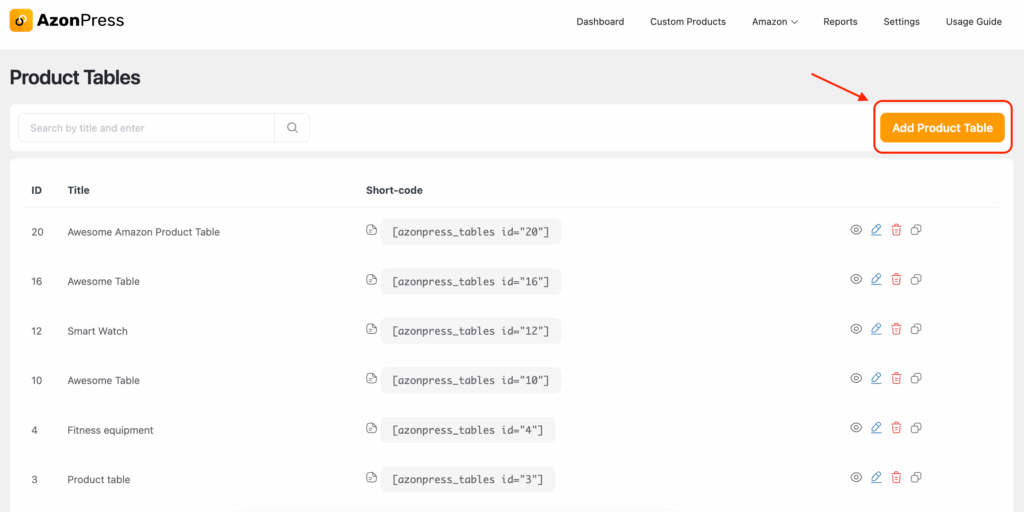
- To create your first Amazon product table, go to: AzonPress Dashboard> Amazon> Product Table> Add Product Table
- Now, a pop-up window will appear. Search for products with keywords or ASIN numbers. A list of products will appear in the window for the specific search. Now select which of these you want to show on your Amazon product table.
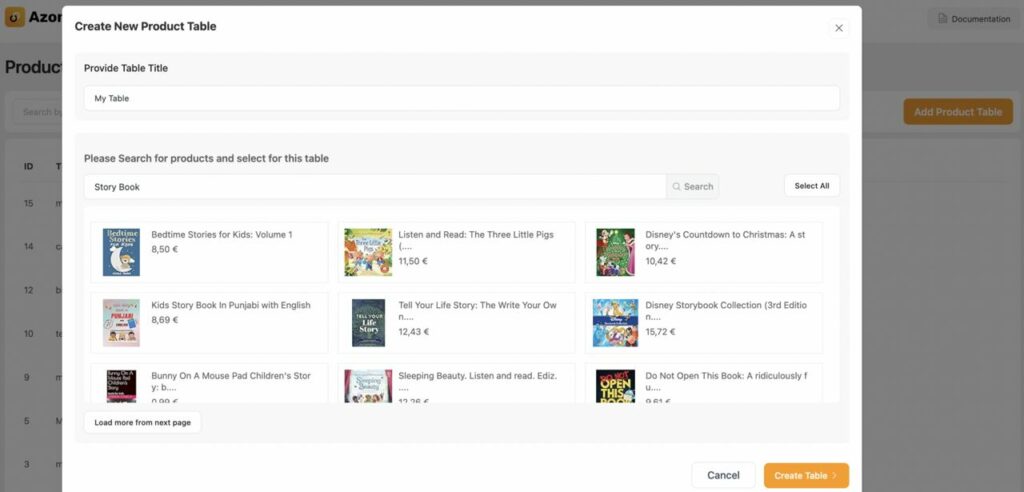
Finally, click on the Create Table button. Congratulations, your first Amazon product table is created with AzonPress. Here’s how your Amazon product table may look at first glance. You can customize the table as you want.
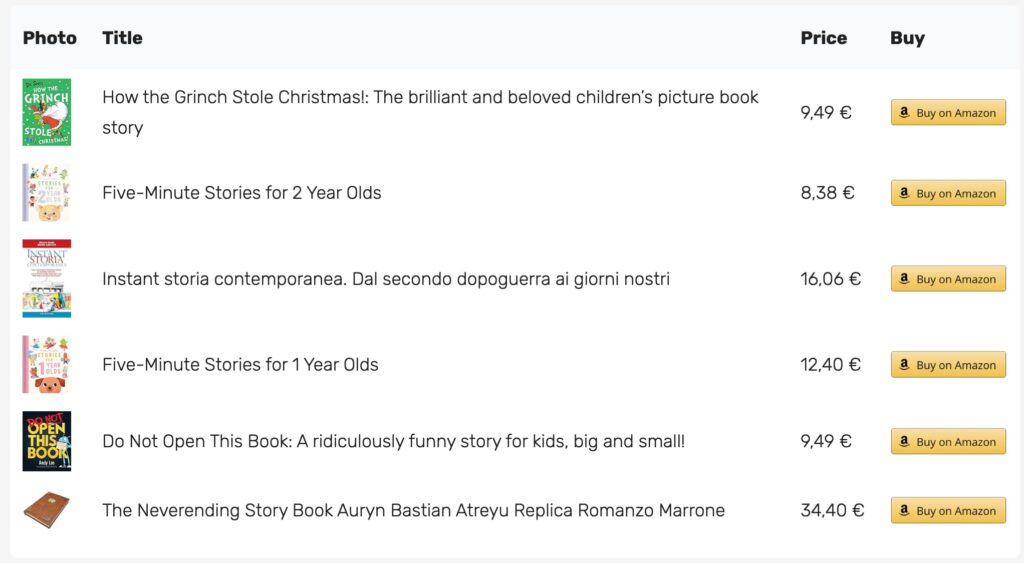
That’s how you can connect the Amazon Creators API with AzonPress and start building Amazon affiliate product showcases inside WordPress.
Manage links, create product tables, and comparison tables, and increase your affiliate revenue
Common Amazon API errors and how to fix them
Here are some common Amazon API mistakes to avoid.
Invalid API credentials
This error appears when your Access Key, Secret Key, or Associate Tag contains a typo or extra whitespace. Solution: copy them fresh from AWS and Associates Central, and re-paste carefully.
API request limit exceeded
Amazon’s PA API has usage limits based on your affiliate activity. New accounts start with limited requests per second, which increases as you generate more sales. Solution: Focus on growing your affiliate revenue; limits increase automatically as your account matures.
Account not approved for API access
If you try to use API credentials before your account is fully approved, requests will fail. Solution: Confirm your approval status inside Associates Central > Tools > Creators API. If approval is pending, wait for the confirmation email.
Missing or incorrect associate tag
Forgetting to include your Associate Tag means commissions will not be tracked to your account. Solution: Verify your Associate Tag in AzonPress settings matches exactly what appears in your Associates Central account.
Product not importing
Some products are not available through the API due to Amazon’s content restrictions. Solution: Try searching for the product using its ASIN (Amazon Standard Identification Number) instead of the product name, or try a different product from the same category.
Expired or deleted keys
AWS Access Keys can be deleted or deactivated. Solution: Return to AWS Security Credentials, create a new Access Key, and update the value in AzonPress settings.
Best practices for using Amazon Creators API
- Keep your API keys secure. Never share them in screenshots, public repositories, or forum posts
- Store credentials in your WordPress settings only; do not hardcode them in theme or plugin files
- Follow Amazon’s Operating Agreement at all times, including proper disclosure of affiliate relationships
- Display fresh, API-powered product data rather than manually typed prices, which quickly become inaccurate
- Avoid making excessive API requests, and only load product data when it is needed for a page
- Regularly audit your affiliate links to confirm they are returning valid products
- Use AzonPress caching features to reduce API calls and improve page loading speed
Final thoughts
Setting up the Amazon Creators API might look intimidating at first, but as you have seen in this guide, the actual process is very manageable. The steps are clear, and once your credentials are generated and pasted into AzonPress, everything runs automatically.
The real payoff comes when you realize how much time you are saving. No more manually checking prices. No more updating broken links. No more copy-pasting affiliate URLs one at a time. Your product displays stay accurate, your affiliate links stay valid, and your time is freed up to focus on creating content.
If you are serious about growing your Amazon affiliate income, connecting the Amazon Creators API to your WordPress site through AzonPress is one of the highest-leverage steps you can take.
Connect your Amazon API with AzonPress today and automate your entire affiliate product workflow, from product discovery to beautiful, conversion-ready displays.


Frequently asked questions
Here are some commonly asked questions regarding the “Amazon Creators API”.
1. Is Amazon Creators API free to use?
Yes. The Amazon creators API is free for approved Amazon Associates. There are no additional charges from Amazon for using the API, though your affiliate account must be in good standing.
2. Do I need Amazon Associates approval before getting API access?
Yes. You must be an active Amazon Associate with at least three qualifying sales before you can apply for API access. New accounts without a sales history will not be approved.
3. What is the difference between Amazon Associates and Amazon API?
Amazon Associates is the affiliate program that pays you commissions on sales. The Amazon API is a technical tool within that program that allows you to retrieve live product data automatically. You need Associates to use the API, but not all Associates use the API.
4. How many sales do I need for Amazon Creators API access?
Amazon requires at least 10 qualifying sales within 30 days as an Associate before granting API access. Focus on generating your first few sales through manually placed affiliate links before applying.
5. Can I use Amazon Creators API with WordPress?
Yes. Through a plugin like AzonPress, you can connect your Amazon API credentials to WordPress with no coding required. AzonPress provides a visual interface for importing products and creating affiliate displays.



Read Similar Blogs
We build lasting partnerships to boost and manage revenue growth



Leave a Reply