

How To Create Custom Product Table With AzonPress?
Key takeaways:
A custom product table in AzonPress lets affiliate marketers create fully customizable product tables manually, without relying on any API. This is ideal for promoting products from any affiliate program, not just Amazon, and gives you full control over the information, layout, and design.
In this blog, you’ll learn:
– What a custom product table is and why it’s useful for affiliate marketing.
– Reasons to create a custom product table, including flexibility, control, and API-free setup.
– Step-by-step instructions to build your own custom product table with AzonPress.
Many affiliate marketers lose interest in promoting products because of one common barrier: API dependency.
In many affiliate programs, you need API access to fetch product data and display it properly on your website. However, getting API access isn’t always simple. Sometimes you have to apply and wait for approval, sometimes the request gets rejected, and in many cases, the affiliate program you want to promote doesn’t even offer an API at all.
This is where AzonPress comes in. With its custom product table feature, you can create fully customizable product tables manually, without relying on any API. This means you can display products from any affiliate program, not just Amazon, while keeping complete control over the content and design.
In this guide, we’ll walk you through how to create a custom product table with AzonPress step by step.
What is a custom product table in AzonPress?
AzonPress is a WordPress affiliate marketing plugin built to help affiliate marketers display products in a structured, conversion-focused way. While many users know AzonPress for its Amazon PA-API integration, it also offers a custom product table builder that allows you to create product tables manually without relying on any API.
This feature is especially useful for affiliate marketers who promote products from multiple affiliate programs or platforms that don’t provide API access. With the custom product table feature, you can manually add product details such as the product name, image, price, rating, description, and affiliate link.
This gives you full control over the information displayed in your table and allows you to customize the layout according to your content and audience.
Manage links, create product tables, and comparison tables, and increase your affiliate revenue
Why create a custom product table?
Before diving into the steps, it’s important to understand why many affiliate marketers prefer creating product tables manually instead of relying on API integrations. While APIs can automatically fetch product data, they often come with limitations that make them less practical for many affiliate websites. A custom product table gives you more flexibility, control, and freedom when promoting products.
Promote products from any affiliate network: Amazon’s PA-API only works with Amazon products. However, many affiliate marketers promote products from multiple platforms. With a custom product table, you can include products from various affiliate networks such as Walmart, Best Buy, Target, or niche affiliate programs.
Skip the API approval process: Accessing Amazon’s PA-API requires meeting specific requirements, including maintaining an active associate account with qualifying sales. For new affiliate marketers or recently launched websites, this can be difficult to achieve. Custom product tables remove this barrier and allow you to start promoting products immediately.
Maintain full control over product data: When using API-based tables, product information like price, availability, or titles is pulled directly from external servers and may change automatically. With a custom table, you control every detail displayed in the table. You can decide which features to highlight, how the product information appears, and what call-to-action message you want to use.
Ideal for digital products and services: Not all affiliate products come with APIs. Many digital products, such as SaaS tools, online courses, and digital downloads, don’t provide structured product data through APIs. A custom product table allows you to promote these products easily while maintaining a professional comparison layout on your website.
Get access to our exclusive offers and pro tips!
Steps to create a custom product table with AzonPress
Alright! You already know what a custom product table actually is. Now let’s get into the actual steps. Follow the steps mentioned below to create a custom product table with AzonPress.
Step 1: Install and activate AzonPress
- First, purchase AzonPress and download the ZIP file.
- Then go to your WordPress dashboard > Plugins > Add New> Upload Plugin.
- Choose the ZIP file, click Install Now, and activate the plugin once it’s installed.
Step 2: Create custom product table
- Once activated, you’ll see AzonPress in your left WordPress menu. Click on it, then navigate to Custom Product.
- Then click on the Add Custom Product button.
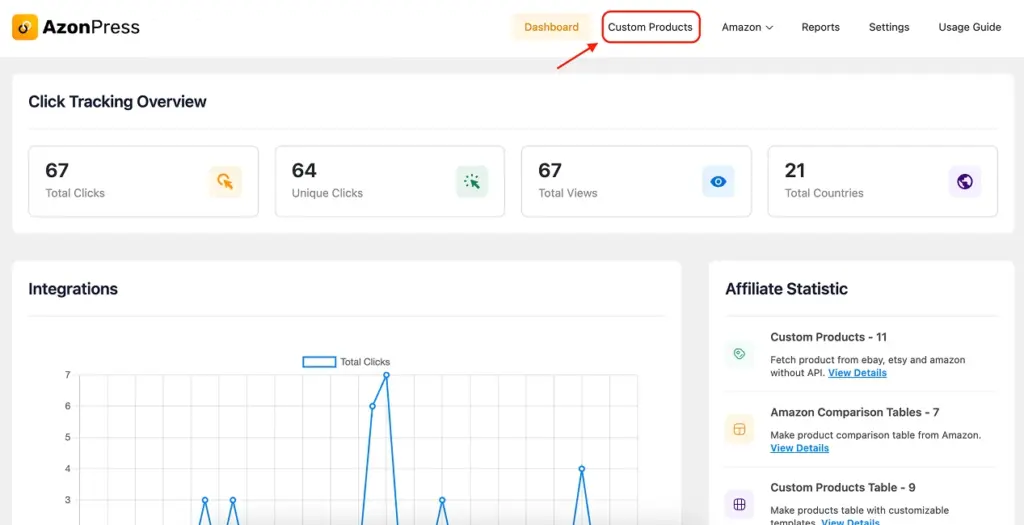
- Here you’ll find two options: you can either add a single product or add multiple products at once. One thing to note is that AzonPress can now fetch product data without an API from platforms like Amazon, eBay, & Etsy. However, if you want to add products from other platforms, you’ll need to manually input the product information. (We’ll explain the process of manually adding product data later in this blog.)
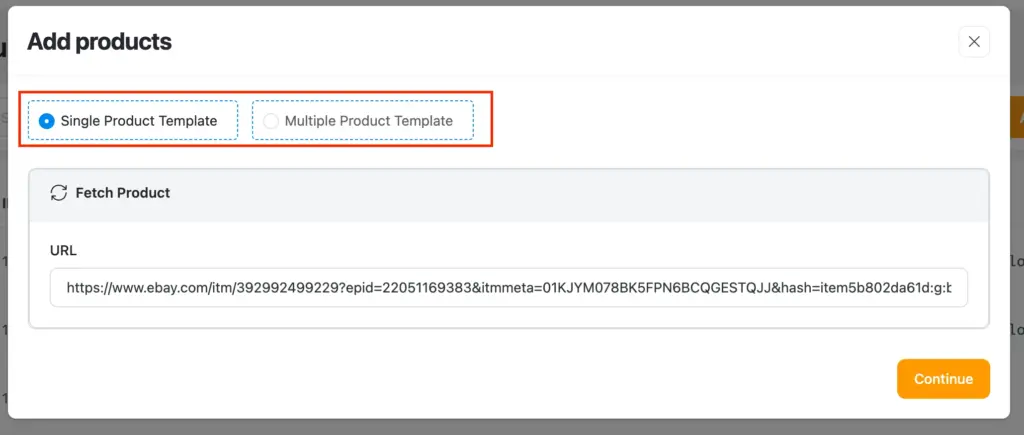
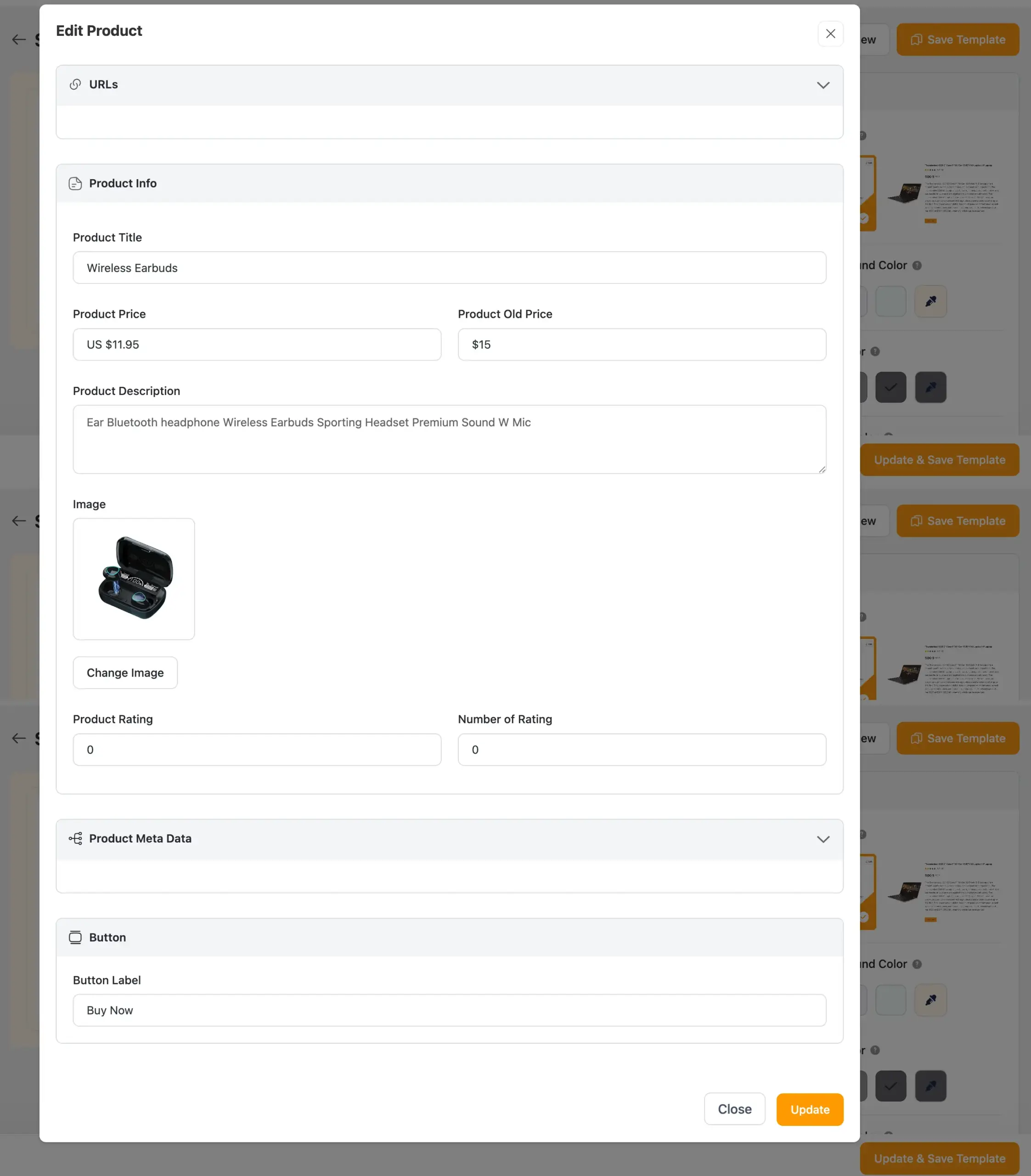
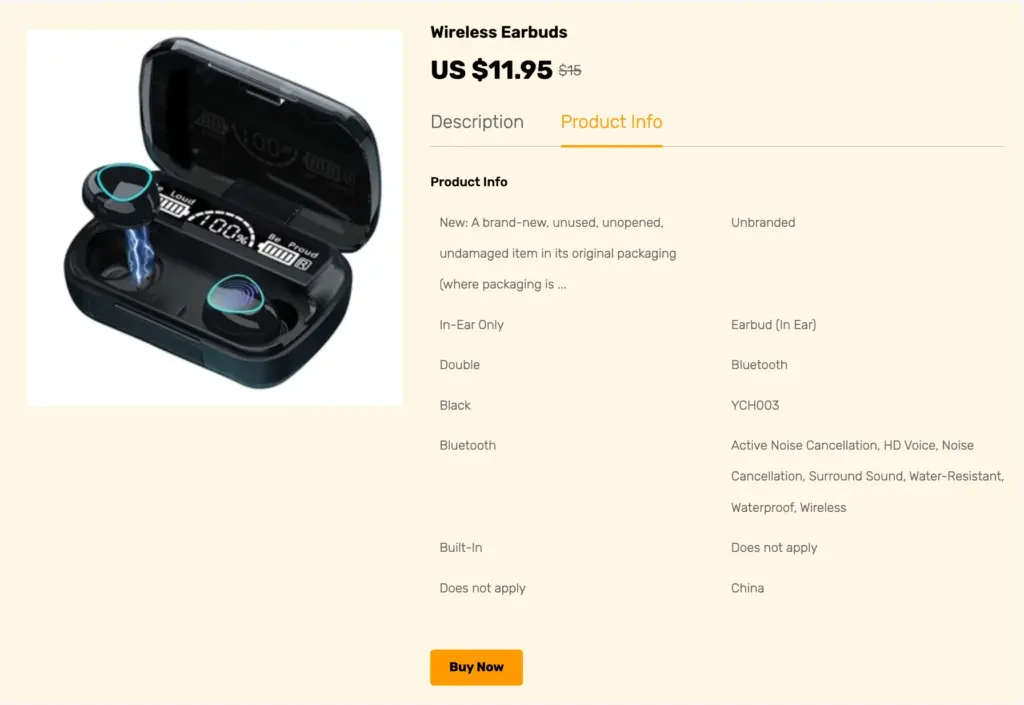
- For this blog, we’ll use the single product table option and simply paste the product URL. AzonPress will automatically fetch the product data directly from the original store. After that, you can edit or customize the product information as needed and adjust the table’s design using the available plugin’s design settings.
- After completing the table customization, click the Update & Save Template buttons to apply and store your changes.
- Here is the preview of how your custom product table will look.
Step 3: Create custom product manually
If you want to add products from platforms other than Amazon, eBay, or Etsy, you can still create a product table using the custom product template in AzonPress. This allows you to manually enter product information and promote items from any affiliate program.
- First, go to the Custom Product Template section in AzonPress and choose whether you want to create a single product table or a multiple product table. For this guide, we’ll select the single product template.
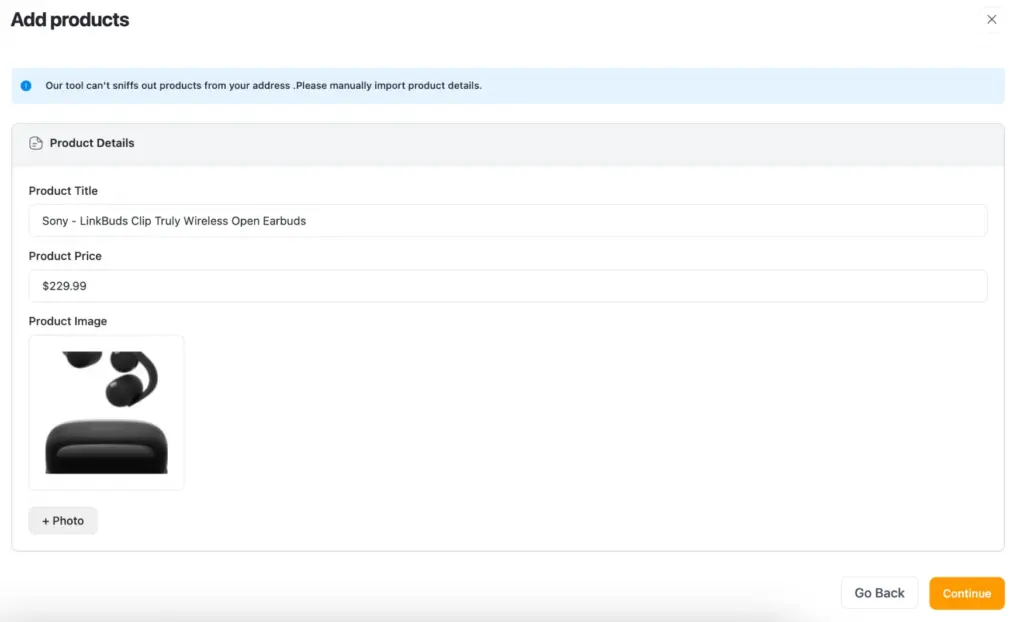
- Next, paste the affiliate product link from the eCommerce store where the product is listed. Once you add the link, a pop-up window will appear on your screen. In this window, you can manually enter the product details such as the product title, price, and image. After filling in the necessary information, click the Continue button.
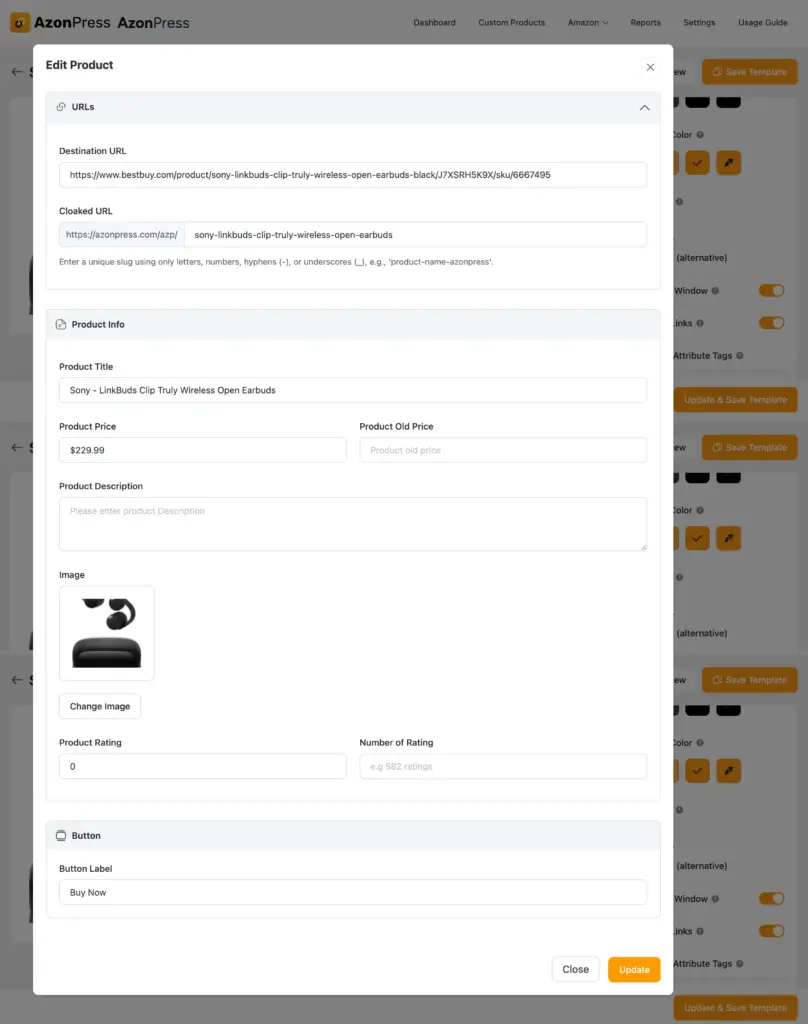
- You will then be redirected to the custom product table editor, where you can further customize the table according to your needs. Here, you can adjust the layout, edit product information, and modify the design using the available settings.
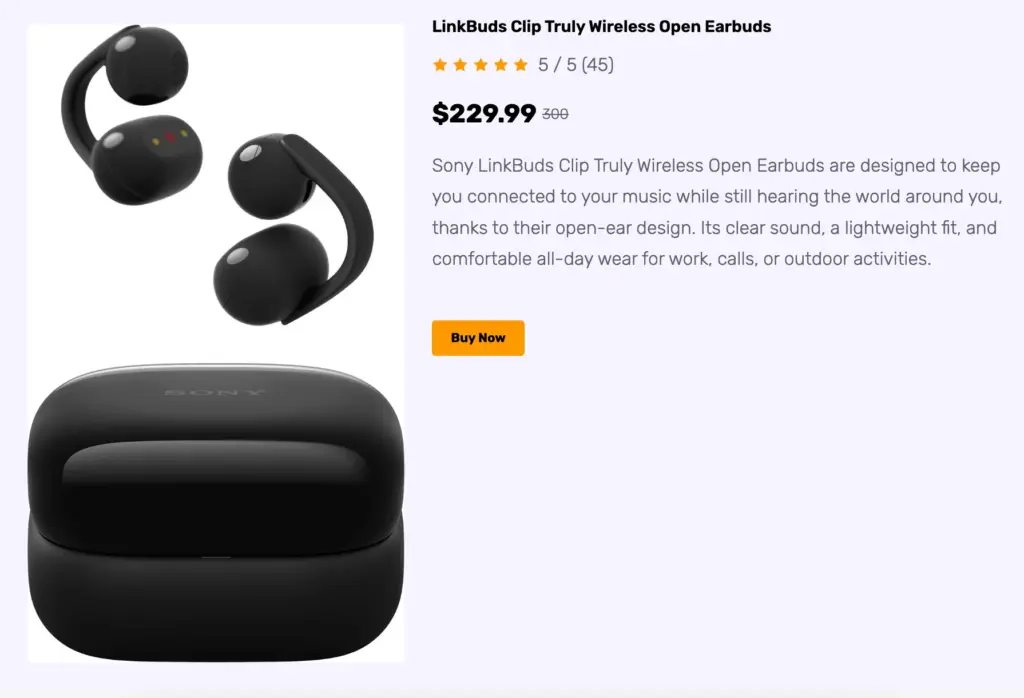
- Once you finish customizing the table and are happy with it, click the Update button to save your changes. Your custom product table is now ready, and you can preview it before adding it to your page or post.
Step 4: Get the shortcode and add it to your post
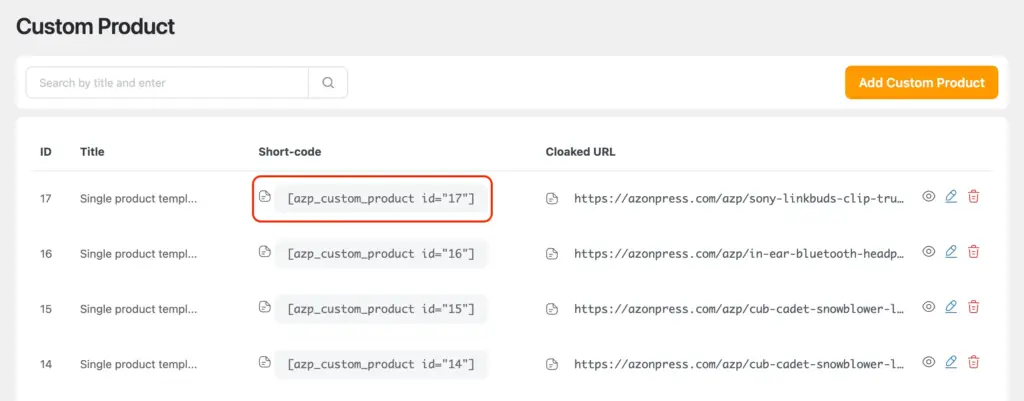
- Now it’s time for the final step, adding the table to your post or page. The process is simple. Go to the Custom Product Table section, copy the generated shortcode, and paste it into the page or post where you want the product table to appear.
- Once you publish or update the page, the product table will be displayed on your site. That’s it!
Final thoughts
API access is great when you have it. But it was never the only way to build effective affiliate product tables.
AzonPress’s custom table feature gives you the flexibility to promote products from any affiliate program, on your terms, with full control over how everything looks and reads. Whether you’re working around API restrictions or just prefer a more hands-on approach, it gets the job done quickly.
If you want to explore more of what AzonPress can do, check out our guides on Amazon product tables and Amazon comparison table plugins, or visit our website for more helpful affiliate marketing tips.





Read Similar Blogs
We build lasting partnerships to boost and manage revenue growth







Leave a Reply