


How To Add a Buy on Amazon Button to Your Website?
Key Takeaways:
A “Buy on Amazon” button is a powerful call-to-action that makes product browsing smooth for your visitors. Instead of scrolling through long reviews or searching manually, users can jump straight to the Amazon product page with a single click. This not only improves their shopping experience but also increases your chances of earning affiliate commissions by reducing friction in the buying journey.
In this blog, you’ll get a clear understanding of what this button is, why it matters for affiliate marketers, and the different ways to add it to your website. Most importantly, you’ll learn how to create professional-looking Amazon buttons in minutes using AzonPress, the WordPress plugin built to simplify affiliate marketing, no coding, no complexity, just quick results.
Amazon is the go-to marketplace for almost every affiliate marketer. It’s the world’s largest online shopping platform, with millions of buyers browsing and ordering products every single day. As an affiliate marketer, if you know how to leverage this platform, you can tap into a goldmine of affiliate opportunities.
However, most affiliates fall short: they write a detailed product review, share their recommendations, and create a stunning product comparison table, but they fail to convert visitors into buyers.
Think about it: your visitors have already read your product review, they are convinced, and they are ready to buy. But if they got a copy-paste URL as a CTA, or navigate through confusing redirects. You’ll definitely lose sales. And losing sales means losing commissions.
That’s where the magic of a Buy on Amazon button comes in.
In this blog, we’ll discuss how to add these conversion-boosting buttons to your WordPress site without touching a single line of code. Let’s start.
What is an “Amazon Buy Now” button?
An Amazon Buy Now button is basically a clickable button that you add to your WordPress posts or pages. When someone clicks it, they’re instantly redirected to that specific product’s page on Amazon.
It isn’t just any regular hyperlink. It’s a visually appealing, attention-grabbing button that’s designed to do one thing: get people to click and buy. And since it contains your unique Amazon affiliate link, every purchase made through that eye-catching button earns you an affiliate commission.
Why use “Buy From Amazon” button on your website?
Okay, so you might be wondering, “I already have links in my content, why do I need buttons?” Let me explain why buttons are absolute game-changers for affiliate marketers:
1. Grab attention instantly
When someone’s scrolling through your article, a brightly colored “Buy on Amazon” button catches the visitor’s eye immediately. It creates a visual break in the content and naturally draws the reader’s focus.
2. Increase click-through rates (CTR)
This is where the commission increases. Studies show that buttons get significantly higher click-through rates compared to text links. Because it looks like action items and feels clickable. It also creates practically begging to be pressed. And more clicks mean more potential sales.
3. Improve user experience
Nobody likes searching for links to buy. When your readers are ready to buy, they want an easy, frictionless path to the product. A strategically placed button gives them exactly that. It’s convenient, it’s clear, and it removes any confusion about what they should do next.
4. Build trust and professionalism
A well-designed button makes your site look more professional and authoritative. It signals to your visitors that you’re not just throwing random links at them, you’re providing a curated shopping experience. That translates directly into conversions.
5. Mobile-friendly
More than 60% of Amazon purchases now happen on mobile devices. Text links are tiny and hard to tap on a smartphone. But buttons are big, finger-friendly, and perfect for mobile users. Adding a button on your post means you’re literally making it easier for mobile shoppers to buy from you.
6. Track better
When you use buttons created with WordPress affiliate marketing plugins like AzonPress, you get detailed analytics. You can see exactly how many people are clicking your buttons, which products are performing best, and where your traffic is coming from. This data is gold for optimizing your affiliate strategy.
However, Buy on Amazon buttons aren’t just a nice-to-have feature; they’re essential for serious affiliate marketers who want to maximize their earnings.
Get access to our exclusive offers and pro tips!
Tutorial: Steps to add a buy on Amazon button on the website
Alright, now for the fun part! I’m going to show you exactly how to add these powerful buttons to your WordPress site using AzonPress. And trust me, it’s so easy that you’ll wonder why you didn’t do this sooner.
AzonPress is a WordPress affiliate marketing plugin that simplifies showcasing Amazon products. No coding required, no complicated setups, just clean, professional affiliate elements that boost your conversions.
I’ll walk you through two methods of adding the Amazon Buy Now button with AzonPress, so you can choose whichever fits your workflow better.
Method 1: Add a buy now button using the Gutenberg editor
This method is perfect if you’re working within your existing content and want to add individual product buttons quickly.
Step 1: Create or open your post/page
First, head to your WordPress dashboard and either create a new post/page or open an existing one where you want to add the Buy on Amazon button.
Step 2: Add the AzonPress Single Product block
Click the ‘+’ icon in your Gutenberg editor to add a new block. In the search bar, type “AzonPress” and you’ll see all the available AzonPress blocks. Select the “Single Product” block.

Step 3: Configure your product
Once you’ve added the block, you’ll see two options to add your product. Either you can fetch product data directly from the URL source, or you can do it manually by inputting data on your own. For demonstration purposes, we are going with the From URL Source option.
Now follow the process we mentioned below.

- Enter the Amazon Product URL: Simply paste the Amazon product link into the designated field and click on the Create Template button. AzonPress will automatically fetch product details if you’re using Amazon’s API.
- Customize the Button: Change the button text to whatever you want, such as, “Buy Now,” “Check on Amazon,” “View Deal,” etc. Pick a color scheme that matches your website’s design.
Along with button customization, you can also customize product descriptions and image padding.

Method 2: Creating an Amazon product table
This method is absolute gold, if you’re creating comparison posts or any content where you’re showcasing multiple products at once.
Step 1: Navigate to AzonPress in your dashboard
From your WordPress dashboard, find AzonPress in the left-hand menu. Then, from AzonPress dashboard, click on Amazon and select “Product Tables.”

Step 2: Create a new product table
- Click the “Add Product Table” button. You’ll be taken to the table builder interface.
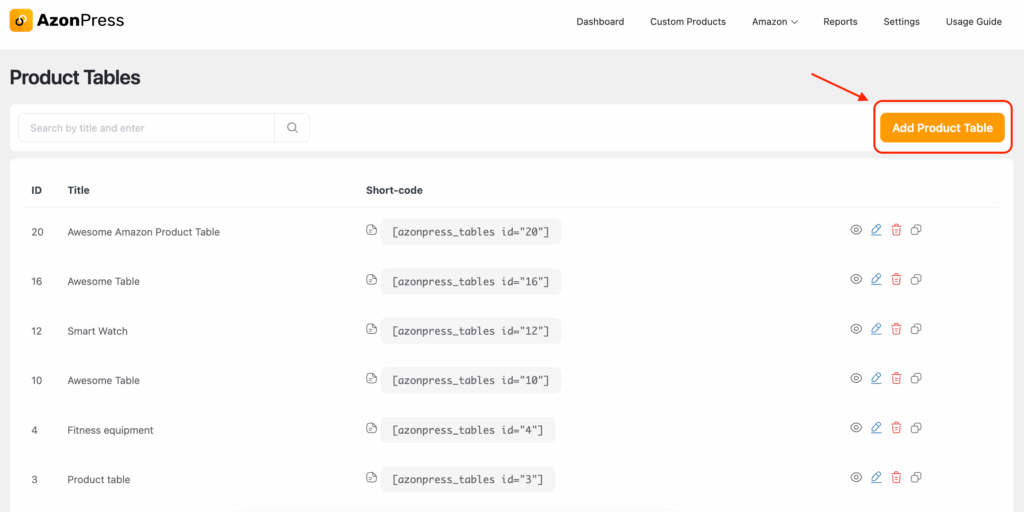
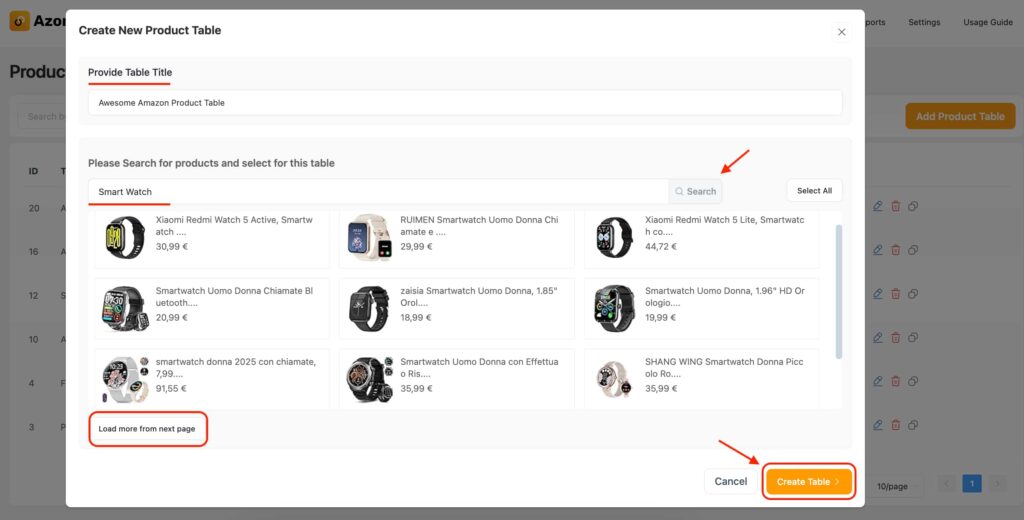
- Here, search for products with keywords or ASIN numbers. A list of products will appear in the window for the specific search. Now select which of these you want to show on your Amazon product table. When you are done, simply click on the Create Table button.
- Now, an Amazon product table will be automatically created. You can customize the product table, with the available design option. You can see that the Buy From Amazon button also comes with the product table.
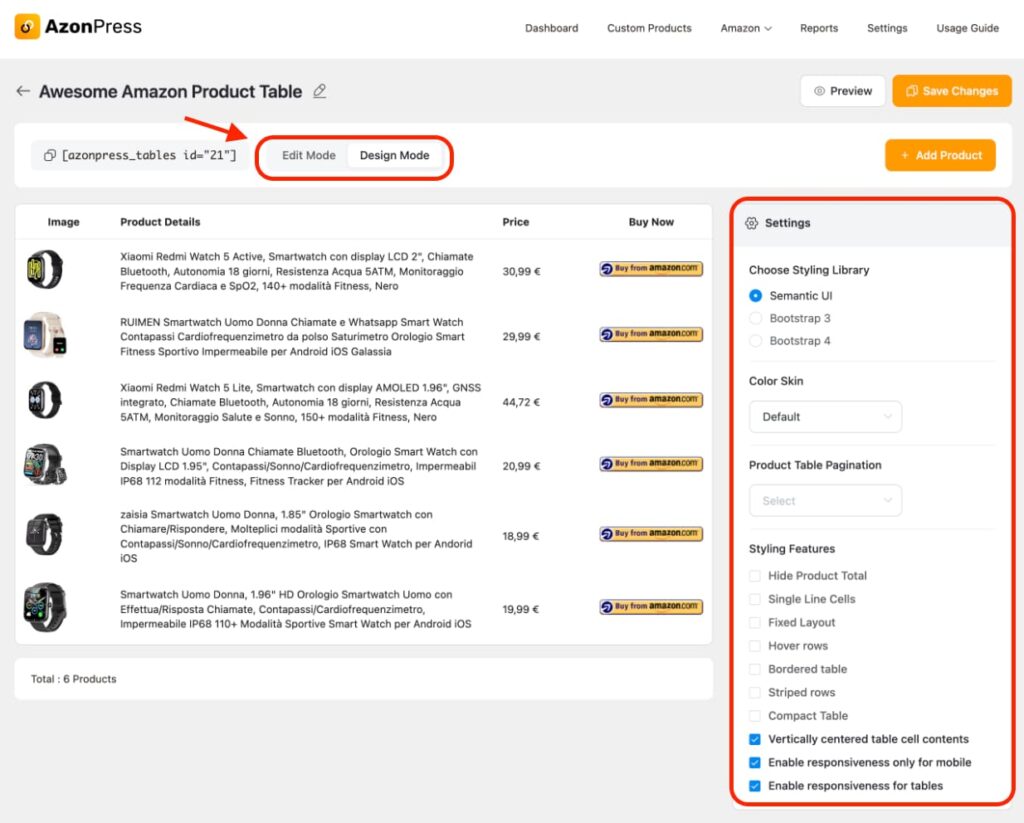
Here is the preview of your Amazon Product table, which comes with the Buy on Amazon Button. When users click on the button, it will redirect them to the product page.
Click here to learn the step-by-step process of creating an Amazon product table on WordPress
AzonPress – best WordPress affiliate marketing plugin
AzonPress is the best WordPress affiliate marketing plugin for creating high-converting affiliate product displays.
With customizable product display boxes, geo-targeting, auto-product updates, and zero API dependency, it enables affiliate marketers to showcase products and manage links from a single, intuitive dashboard.
Additionally, you can display your top-selling products with the Amazon bestseller list feature. Another good thing is, the plugin automatically updates product information whenever changes happen in the original store.
Some of its key features include:
- Customizable comparison tables
- Best-seller lists and product grids
- Zero API integration
- Customizable layouts
- Link management
- User-friendly interface
- Smart Gutenberg widgets
- Geotargeting
- Advanced reporting
- Geolocation-based redirection
- Shortcode support
- Responsive and mobile-friendly layouts
Manage links, create product tables, and comparison tables, and increase your affiliate revenue
Increase your sales with the Buy on Amazon button
Adding Buy on Amazon buttons to your WordPress site isn’t just good to have; it’s essential if you’re serious about maximizing your affiliate commissions. And with AzonPress, you’re not just getting a button creator. You’re getting a complete affiliate marketing toolkit that includes:
- Stunning Gutenberg blocks for quick product showcases
- Professional product tables with zero coding required
- Detailed click tracking and analytics
- Mobile-responsive designs that look great on any device
- The flexibility to work with Amazon API or without it
- Support for multiple affiliate platforms beyond Amazon
The best part of the plugin is, you can get started today and have your first Buy on Amazon buttons live on your site within minutes.
Ready to transform your affiliate income? Give AzonPress a try and watch your click-through rates and your commissions soar!
Frequently asked questions
Here are some frequently asked questions on the ‘Buy on Amazon” button.
1. What is a “Buy on Amazon” button?
A “Buy on Amazon” button is a call-to-action link or button on your website that takes visitors directly to a specific product page on Amazon. It’s commonly used by Amazon Associates to increase clicks and conversions.
2. Do I need an Amazon Associates account to use this button?
Yes. To legally earn commissions, you must be part of the Amazon Associates program. Once approved, you can generate affiliate links and attach them to your “Buy on Amazon” button.
3. Can I add this button without coding?
Absolutely. Plugins like AzonPress let you create Amazon product tables and buttons without writing any code. You can generate and customize the button directly from your WordPress dashboard.
4. Will adding a “Buy Now” button improve my affiliate earnings?
In most cases, yes. A clear, visible call-to-action reduces the steps users need to take before purchasing. This leads to more link clicks, better conversions, and ultimately higher affiliate commissions.
5. Is it allowed by Amazon’s policy to design my own button?
Yes, you can design your own button, but it must follow Amazon Associates policies. You cannot use official Amazon logos or branding unless explicitly allowed. AzonPress automatically ensures full compliance, so you stay safe.





Read Similar Blogs
We build lasting partnerships to boost and manage revenue growth




Leave a Reply